Features
An area-by-area summary of the modules and capabilities in the Journey AI admin panel.
This page summarizes what Journey AI can do, grouped by area, and links to related guides.
The admin panel interface is in Turkish. Interface labels below are shown in bold in Turkish, followed by their English meaning.
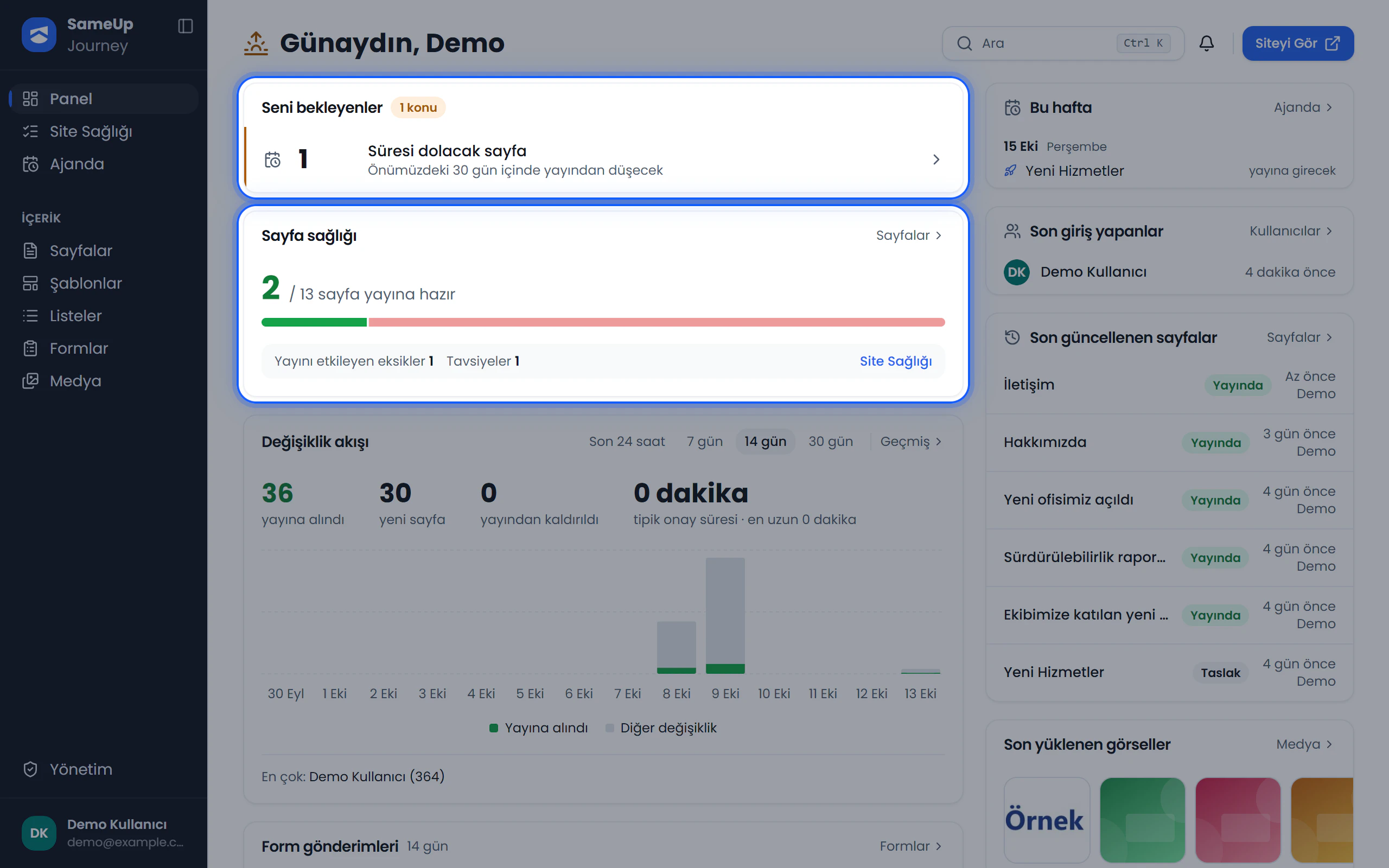 Admin panel home screen — 'Waiting for you' and 'Page health' cards
Dashboard
The home screen shown after signing in, visible to all users. Waiting for you shows unresolved errors, new form submissions, failed notifications, pages awaiting edits or approval, and other pending work. Each row opens the corresponding filtered screen. Page health, Change flow, and Form submissions summarize content health and recent activity.
Guide: Meet the dashboard
Content
| Capability | Description |
|---|---|
| Pages | List, grid, and table views; status tabs, search, and filters. Page settings are split into General, Menu, Publishing, Redirect, Tags, Page lists, and Languages sections. |
| Component editor | Component tree on the left, preview site on the right. Drag and drop, duplicate, move to another page, color-coded diff view, device preview. |
| Visual editing | Click any element in the preview with the Inspector to edit it, or switch to the full-screen Visual Editor. |
| Templates | Shared areas such as the header, footer, and navigation. Each language has a default template. |
| Lists | Add typed fields to pages for repeating content such as news, announcements, or team members. |
| Page health | An automatic checklist that finds missing content, SEO, GEO, and language data. |
Guides: Create a page, Lists
Workflow
- Pages and templates are submitted for review by users with approval permission through Send for approval. They review the diff and choose Approve or Reject.
- Publish start and end dates, with an optional redirect when publishing ends.
- Agenda: publishing dates, a calendar of notable days, and personal reminders with notes.
- Notifications and an optional daily summary email. See Agenda and notifications.
Guide: Publishing and scheduling
SEO and GEO
Every page has three layers per language: Meta, Schema, JSON-LD, and Entity, GEO. The layers are published independently of the page's approval flow. You also manage page types (WebPage, CollectionPage, BlogPosting, NewsArticle), robots.txt rules, the AI crawler policy, site verification tags, IndexNow, and llms.txt here.
Guide: SEO and GEO
Forms
Ready-made forms (Contact, Newsletter, Meeting request), a large field catalog, width-based layout, and validation rules. The Submission flow is made of email and webhook steps, with conditional steps and 16 email themes. Submissions collect in the Inbox and can be exported to Excel. reCAPTCHA or Cloudflare Turnstile can be used for spam protection.
Guide: Forms
Languages
Each language has a name, ISO code, URL prefix, and a default flag. Pages, templates, form translations, and SEO data are kept per language. You can send every language of a multilingual page for approval in one go.
Guide: Languages
Media
A folder tree with Photos, Videos, and Documents tabs. Files are uploaded to cloud storage and served through a CDN. A WebP copy of every photo is created automatically. Uploaded files are checked for type and content.
Guide: Media
Users and permissions
Role-based access: permissions are grouped by category (Page, Template, Form, User, and so on) and combined into roles. A user can hold several roles. Users sign in with email and password or with corporate single sign-on (SSO). Users arriving through SSO are approved under Registration requests.
Guides: Users and roles, SSO registration requests
Operations
- Change history: an audit log of page, component, template, form, and user changes, with a diff viewer.
- Errors: error tracking by severity, status, and category.
- Visitors: visitors, traffic, and breakdowns through Umami.
For how to use these three screens, see History, errors and visitors.
- Settings: site addresses, email provider, AI provider, captcha, and file limits. Secret settings are stored encrypted. See Settings.
- Private pages: access groups that open pages only to invited people or to the organization's network. See Private pages.
- A command palette (⌘K / Ctrl+K) and list views whose filters live in the URL, so you can share them.
AI
AI (OpenAI or Gemini) generates SEO meta, schemas, and entities, creates form fields, and writes email bodies. Its output is always a suggestion and never blocks publishing.
Related pages
5 · Create a page
Create a new page, set its basics, and get started on its content.
3 · Create a list
Add structured fields to pages and manage repeating content, such as a news section, with a list.
Agenda and notifications
Track scheduled pages on a calendar, add reminders, and keep up with changes through the daily summary e-mail.