Settings
Manage e-mail, captcha, AI, file limits and site addresses from one screen.
In this guide you'll learn where the settings that the editor guides refer to with "ask your administrator" are configured: the e-mail provider, form security (captcha), the AI provider, file type and size limits, and site addresses.
Open the screen
Click Management in the left menu and open the Settings card in the People and settings section.
Viewing the screen requires the List permission in the Parameter management group; changing it requires Update. Users without Update only see the fields, and the Save button is hidden. See Users and roles.
Settings are grouped into categories in the left menu: Site, Connections, Mail, Form security, Site access, Search engines, Media, Transfer, AI and Other. Other shows settings that exist in the installation but aren't known to the screen, under their raw names. A dot next to a category means it has unsaved changes; an "empty" count shows how many of its fields are blank.
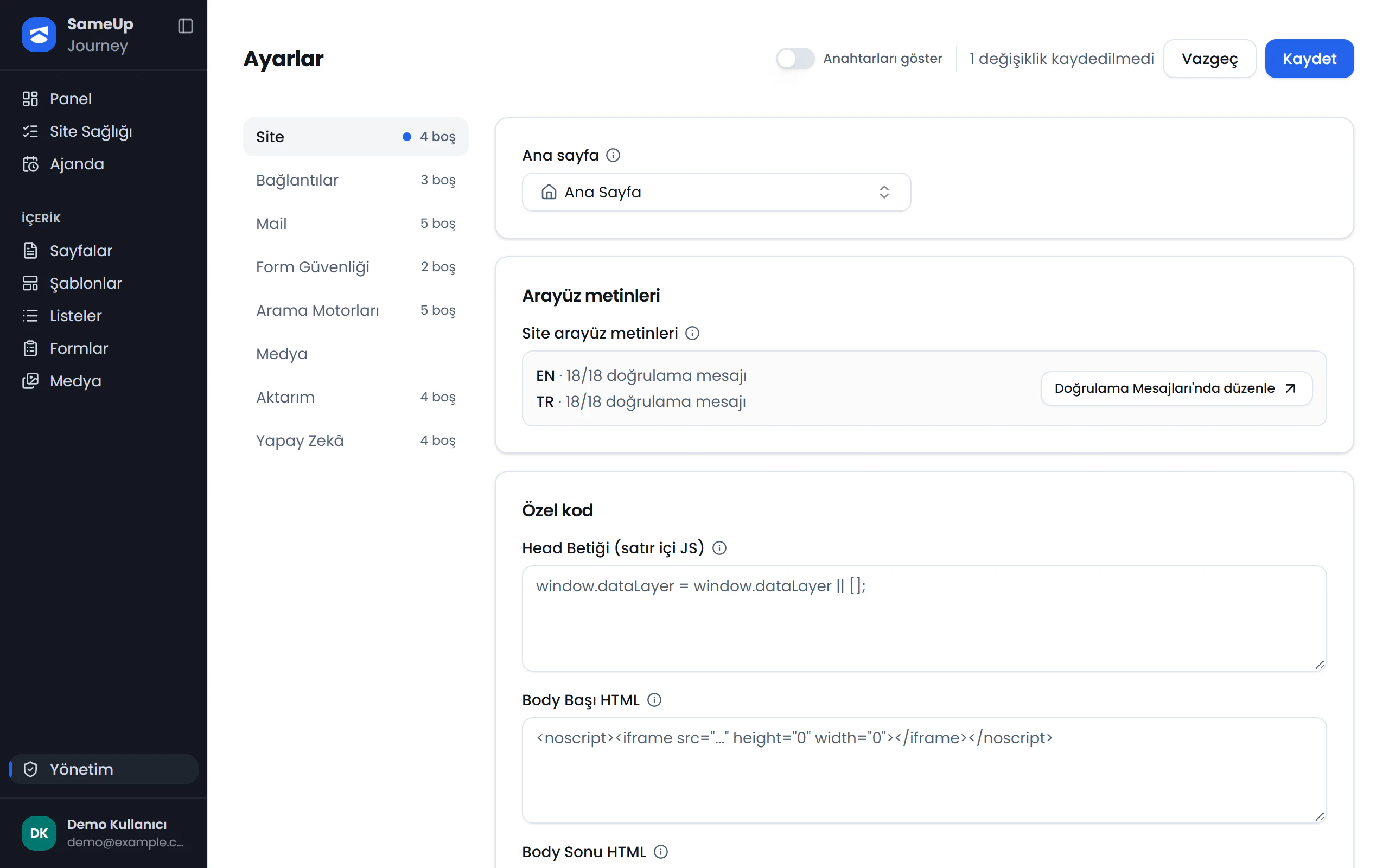
Categories
Click the numbers or use the ← → keys.
How saving works
Make your changes
Edit fields in any categories. The top bar shows the number of unsaved changes. Discard undoes all of them.
Save
Click Save. Changes in all categories are saved together. If any field is invalid, nothing is saved and the error message tells you which field to fix.
Test the connection
The Mail and AI categories have a Test connection button. The test uses the saved settings, so save first.
Secret values
API keys, the SMTP password and captcha secret keys are stored encrypted in the database. After saving, these fields appear empty:
- Set — type a new value to change it: a value is stored. Leave the field empty to keep it.
- Not set: no value has been entered yet.
A stored secret is never shown on screen and cannot be cleared from the screen; it can only be replaced with a new value.
All e-mails sent by forms and by the system go through the provider selected here.
Choose a provider
Pick a provider on the Mail provider card. The default is SMTP server. The other options are under Other providers: SendGrid, Resend, Postmark, Brevo, Mailgun and Mailjet. The fields of the selected provider open in the form. Values that belong to other providers are hidden, not deleted.
Enter the connection details
For SMTP, fill in SMTP server address, SMTP port, default 587, SMTP user name and SMTP password. The other providers only need an API key; Mailgun also needs a domain and region, and Mailjet also needs a secret key.
- Port 465 uses SSL directly; other ports use STARTTLS.
- Google Workspace and Microsoft 365 don't accept the normal account password; create an app password.
Enter the sender details
On the Sender and design tab, fill in Sender e-mail address and Sender name, for example [email protected]. The sender address must be verified with the provider; otherwise sending is rejected. The same tab holds the e-mail logo, brand color and footer text.
Send a test e-mail
Click Test connection, check the Recipient address and choose Send. If the e-mail arrives in your inbox, the settings work.
SPF and DKIM records
Whichever provider you choose, your domain's DNS records must include SPF and DKIM. You get the values from the provider's dashboard and enter them in your domain's DNS management; this is not done on this screen. Without them, e-mails land in spam even when the settings are correct.
When the server or user name changes
If you change the SMTP server address or user name, enter the SMTP password again. The stored password is not sent to the new address; without a password the save is rejected.
Form notifications are queued and retried a few times if they can't be delivered. You can see the delivery status in the form's Inbox. See Build a form.
Form security
Captcha protects form submissions against bots. Captcha is not a form field: it's set up once here and used by all forms.
Choose a provider
Pick one on the Captcha provider card:
| Provider | How it works |
|---|---|
| Google reCAPTCHA v2 | Shows the visitor a checkbox. |
| Google reCAPTCHA v3 | Invisible; gives each submission a score. This is the default. |
| Cloudflare Turnstile | Shows no puzzle and doesn't depend on Google. |
Enter the keys
Enter the site key and secret key from the provider's own dashboard. The site key is used in the browser and isn't secret; the secret key stays on the server.
Set the threshold (reCAPTCHA v3)
Submissions scoring below Acceptance threshold, default 0.3 are treated as bots. Lowering it reduces the risk of rejecting real visitors; raising it reduces spam.
No secret key means no protection
If the secret key is empty, captcha isn't checked and every submission is accepted. File upload fields in forms also don't work while no secret key is set. There is no test button for captcha; try the setting by submitting a form.
AI
SEO titles and descriptions, schema suggestions, form fields and form e-mail bodies are generated with the provider selected here.
Choose a provider
Pick OpenAI or Google Gemini on the Active AI provider card.
Enter the API key
Enter the API key of the selected provider. You get the key from the provider's own dashboard.
Choose a model
Pick a model of the selected provider from the AI Model list. The list shows both providers' models together. A model of the other provider is ignored, and the provider's default model is used instead.
Test the connection
Save and click Test connection. If the provider replies, the settings work.
If no provider or API key is set, the panel hides the AI generation buttons. Each generation is a paid call made with the installation's own API key.
Media
Sets which file types and sizes can be uploaded in the panel. The Photo, Video and Document tabs each have two fields:
- Allowed extensions: the extensions that can be uploaded. If none are selected, uploads of that type are turned off.
- Largest file, MB: the limit for a single file, between 1 and 50 MB. Empty means 50 MB. Files uploaded earlier are not affected.
| Type | Selectable extensions | Default limit |
|---|---|---|
| Photo | jpg, jpeg, png, webp, gif, bmp, svg | 10 MB |
| Video | mp4, ogg, webm | 50 MB |
| Document | doc, docx, pdf, xls, xlsx, ppt, pptx, rtf, zip, rar, 7z | 20 MB |
On the Image processing tab you set the default format of uploaded photos (Original format, WebP, JPEG or PNG), their longest edge and quality. SVG and GIF files are never converted. Use PNG for e-mail logos; some e-mail clients don't show WebP.
SVG files
SVG files can contain scripts. Allow SVG uploads only for users you trust.
Connections
In the Addresses section, enter the site's addresses:
- Live site address: the site's root address, for example
https://www.example.com. No path, query or#. - Preview site address: where draft content is shown, for example
https://preview.example.com. After saving, the preview opens at this address. - Panel address: used for the "open in panel" links in notification e-mails. If empty, those links are left out.
- API address: used for the unsubscribe link in e-mails. If empty, that link is left out.
The Cache refresh section holds the connection settings used to refresh the site's cache after saving. These values must match the site's own configuration; set them up together with your development team. To refresh the cache by hand, use the Refresh cache button at the top right of the Management screen.
Other categories
- Site: the home page, custom code added to every page (head script, body start and end HTML) and measurement tags. Custom code runs on every page; add only code you understand. See Analytics and measurement tags.
- Search engines: organization name and logo, the
llms.txtintroduction, AI crawler access, IndexNow and search engine site verification codes. See SEO and GEO. - Transfer: whether export from and import into this installation are turned on.
- Site access: visitor sign-in for pages open only to certain people. Here you set the title and text of the screen a visitor sees without access, how long the access link sent to a person stays valid, the subject and intro text of the link e-mail, and the warning period for groups whose access is about to end. See Private pages.
Analytics and measurement tags
Visitors screen
The Visitors card on the Management screen shows the site's traffic (using the Visitors screen): which pages are visited, where visitors come from and which devices they use. Viewing it requires the Change Log permission in the System information group.
The data is read from Umami. For the screen to work, the site's Umami share link must be set:
- UMAMI_SHARE_ID: the share ID created in Umami under the site › Share. You can also paste the whole share link; the address is read from it.
- UMAMI_URL: the root address of the Umami installation, for example
https://umami.example.com. Not needed if you pasted the whole share link.
If these two fields exist in the installation, they appear in the Other category under their raw names. If they don't, your development team adds them; new settings can't be created on the screen.
Measurement tags
Add measurement tags such as Google Analytics or Google Tag Manager in the Head script, inline JS field of the Custom code section in the Site category.
The site's security policy (CSP) only allows known measurement providers:
- Google Tag Manager
- Google Analytics
- Google Ads
- Meta Pixel
- LinkedIn Insight Tag
- CookieYes
- Cloudflare Insights
Tags from a provider that isn't on the list are blocked in the browser. To add a new provider, ask your development team; it's a code change.
To turn a provider off, write its name in the Disabled measurement providers field of the Measurement tags section, one name per line. An empty field means every provider is on. Also remove the provider's tag from Tag Manager.
Turning providers off needs the current site version
The current version of the site template reads the Disabled measurement providers field. The panel's description of the field says it has no effect yet. If your site hasn't moved to that version, the setting does nothing; check with your development team.