5 · Create a page
Create a new page, set its basics, and get started on its content.
In this guide you'll create a page from scratch in the admin panel and set its basic details.
The admin panel is in Turkish
Button and menu labels below are given in English, followed by the exact Turkish label you'll see in the panel.
Before you start
Create the language you'll use. If you plan to choose a template, make sure an approved template is ready in that language. If the page will use a list or form, prepare the relevant list or form first.
Create the page
Open the new page screen
In the sidebar, go to Pages and open the new page screen.
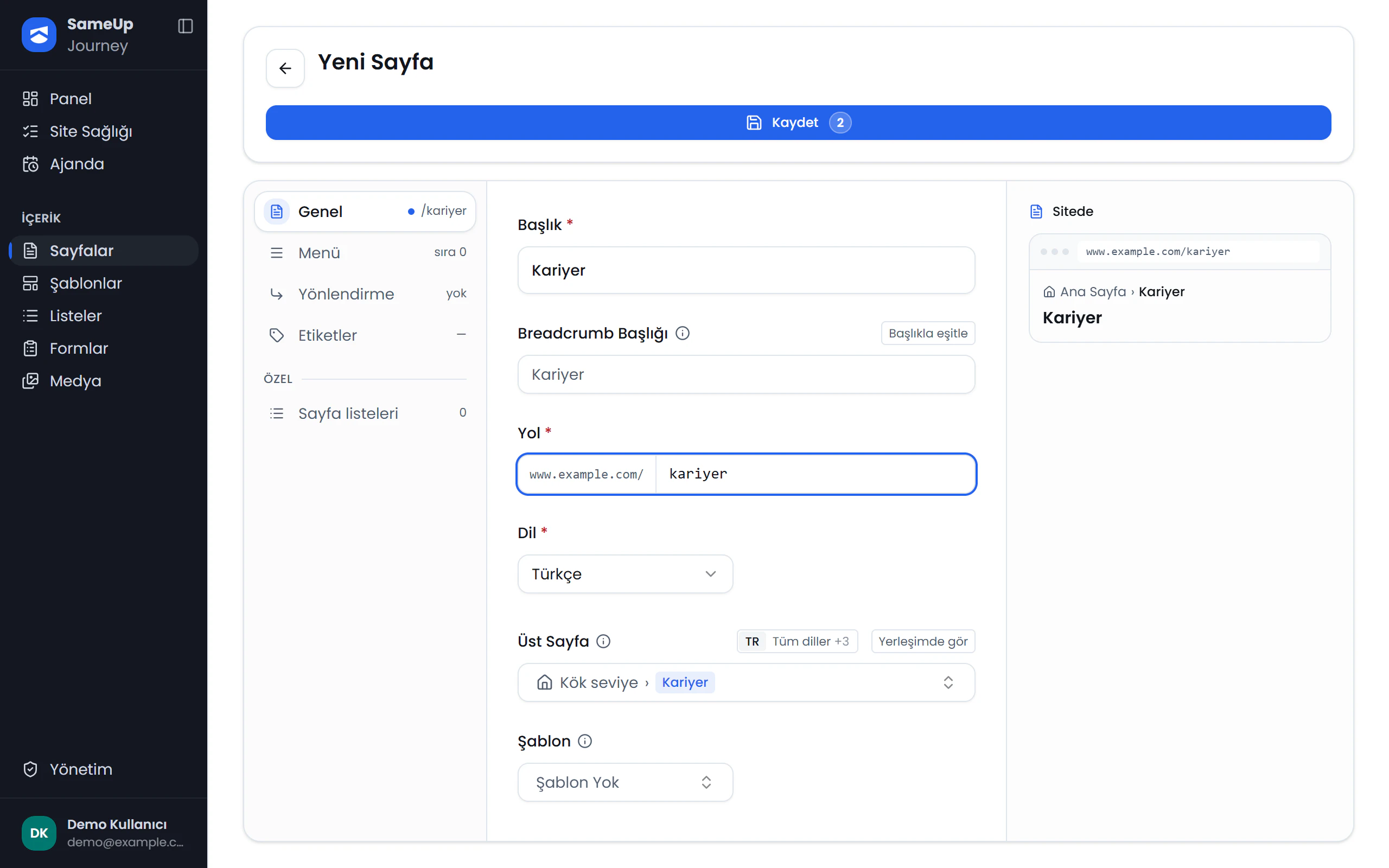
Sections
Click the numbers or use the ← → keys.
Fill in the basics
In the General section, fill in Title, Path and Language. Write the path without a leading /, for example corporate/about-us.
Pick a parent page and template
Optionally choose a Parent Page and a Template. Only approved templates in the page's language are listed. If you don't pick one, the page uses the default template for its language.
Save
Click Save. The page is created with the Draft status.
Next: add page content
After creating a page, follow Add components to edit its content in the component tree. For the component tree concept, see Component tree.
Use Copy Page in page settings. You can copy it with or without its components.
Finished this step?
Mark it to save your progress on the editor path.