Media management
Upload photos, videos and documents, organize them in folders, and use them on pages.
In this guide you'll upload files on the Media screen, manage them, and use them in components.
How it works
Files are uploaded to your installation's file storage and served through a CDN. The Media screen shows files in three tabs: Photos, Videos and Documents. Use the folder tree on the left to move between folders.
A WebP copy of every uploaded photo is created automatically. Every upload is checked by file type and content, and file types that aren't allowed are rejected.
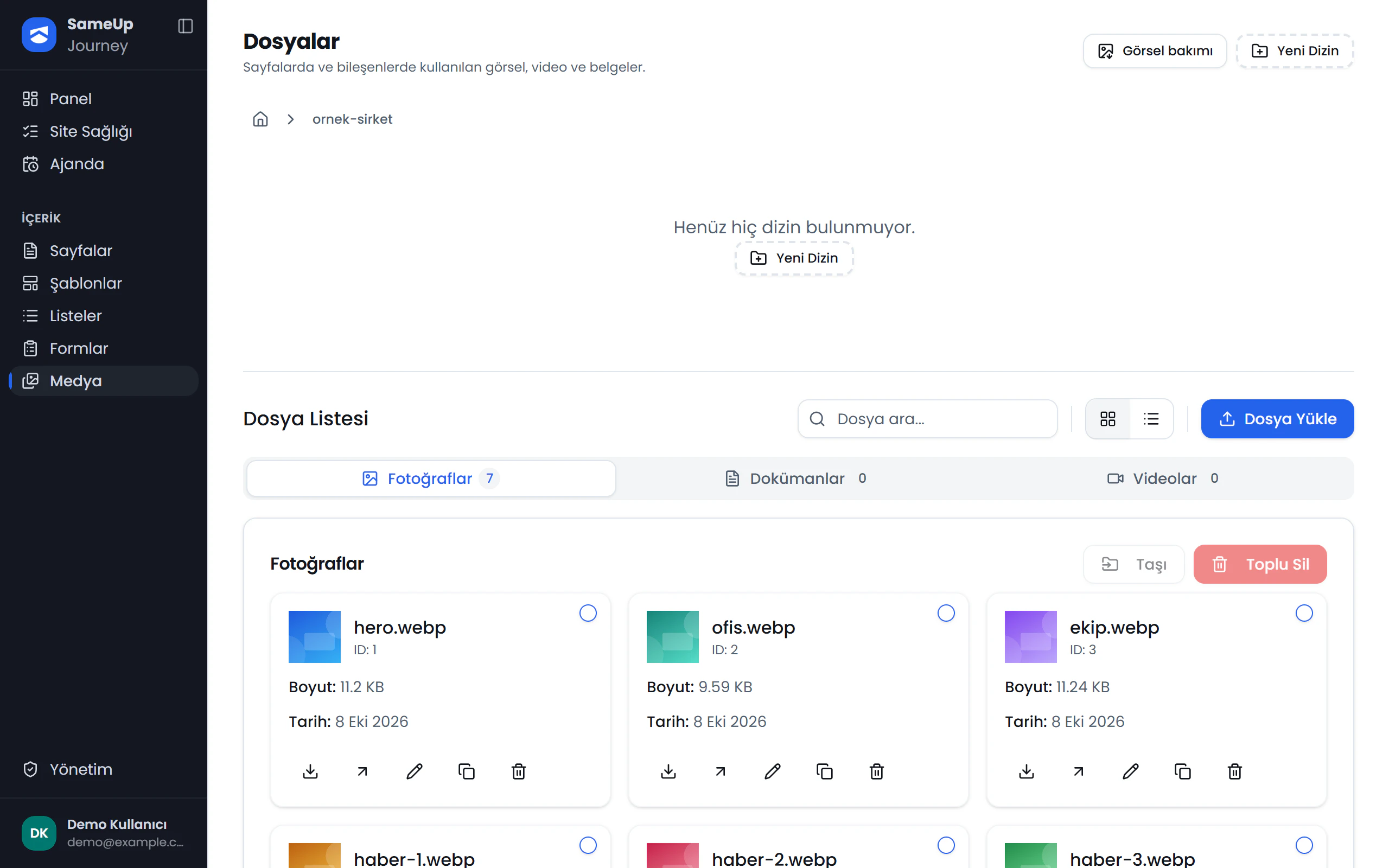
Folders
Click the numbers or use the ← → keys.
Upload files
Choose a folder
On the Media screen, open the folder you want to upload to. Files are uploaded to the folder that's currently open.
Open the upload panel
Click Upload File. Upload Path in the panel shows the folder the files will go to.
Add files
Drop files onto Drag files here or pick them from your computer.
Choose an image format if needed
To convert images while uploading, choose WebP, JPEG or PNG under Image Conversion Format.
Upload
Click Upload Files.
Manage files
- Search by file name with the Search files... box.
- Switch between list and card views.
- From a file's actions, use Preview, Open in new tab and Copy URL.
- To rename a file, use Update file name.
- Delete a single file with Delete, or select several files (or Select all) and delete them together. Deleting can't be undone.
Use a file on a page
Files in Media can be picked directly in the component editor. When you edit a Photo field, use these tabs:
| Tab | What it does |
|---|---|
| Upload | Uploads a new image from your computer |
| Gallery | Picks from images in Media |
| Recent Uploads | Shows the most recently uploaded images |
| Page Images | Shows images already used on the same page |
Video and document fields have a folder browser plus Upload New Video and Upload New Document buttons.
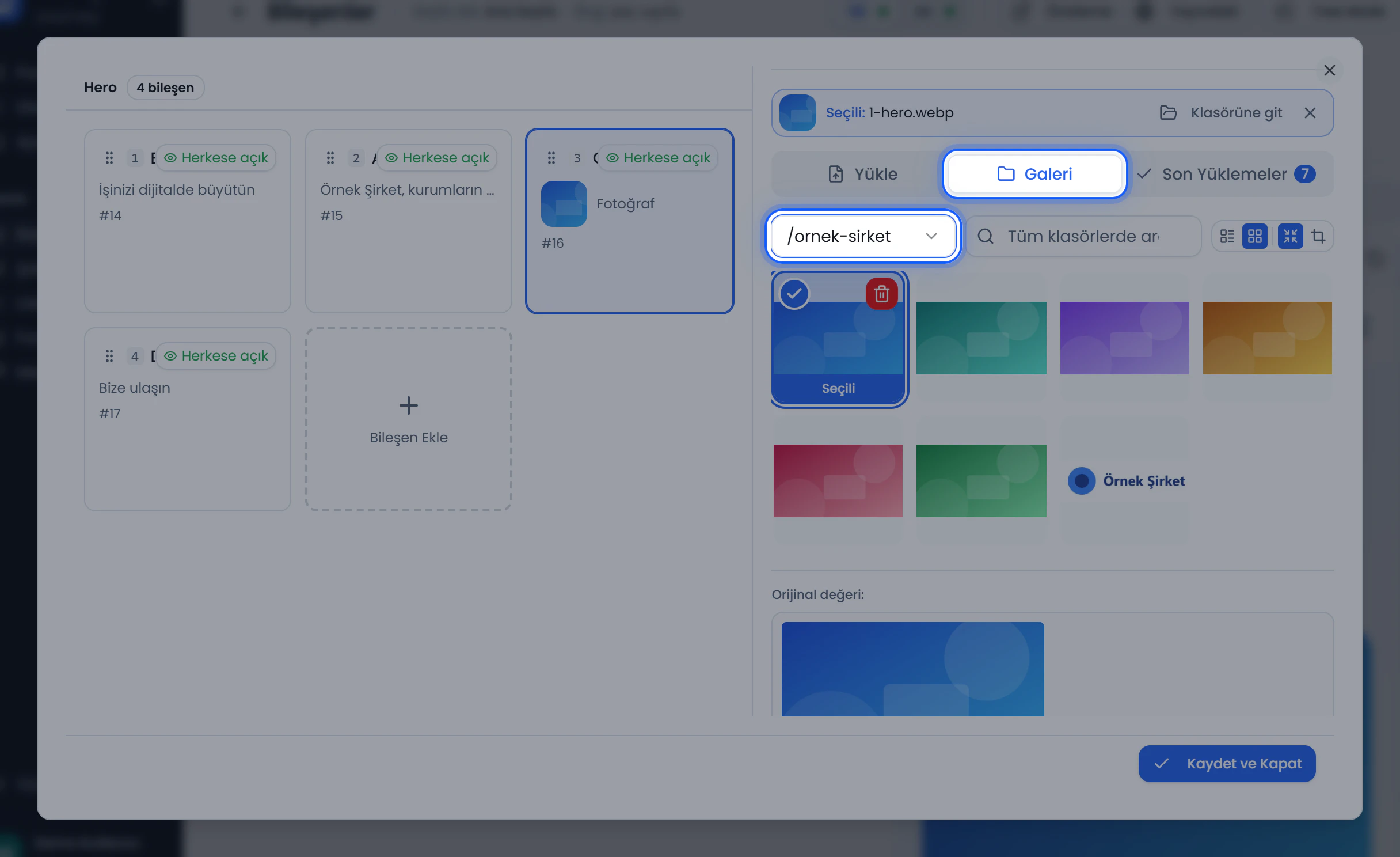 Grid window — Photo field, Gallery tab
Common situations
The file's type or size may be outside what your installation allows. Allowed extensions and size limits are set by an administrator on the Settings screen. See Settings › Media.
Deleting can't be undone. Images or links on pages that use the file may stop working. Make sure a file isn't in use before you delete it.
You need file permissions to see the file list. Ask your administrator to add file permissions to your role. See Users and roles.