Users and roles
Create roles, assign them to users, and review their effective permissions.
In this guide you'll define roles for the admin panel, create users, and review their effective permissions.
How it works
Journey AI uses role-based access control. Permissions are granted to roles, and roles are assigned to users. What a user can do is the combined set of permissions from their active roles. Permissions from an inactive role don't count.
Permissions are shown in groups in the role edit dialog. The panel shows group and permission names in Turkish:
| Permission group | Permissions |
|---|---|
| Language management | Add, Update, Delete, List, View |
| File management | Add, Delete, List, View, List folders |
| Component management | Add, Update, Delete, List, View, Publish |
| Template management | Add, Update, Delete, List, View, Send for approval, Approve |
| Page management | Add, Update, List, View, Send for approval, Approve, Reorder, Delete, Assign schema type |
| Role management | Add, Update, List, View, Delete |
| User management | Add, Update, List, View, Delete, Approve registrations |
| Form management | Add, Delete, List, View |
| Parameter management | List, Update |
| System information | Change Log, Global Error Log |
| Cache management | View, Manage |
| Developer | View, View table data |
| Private pages | Change page access, Manage access groups |
Depending on your installation, an additional permission group for an external data integration may also appear. Because sending for approval and approving are separate permissions, you can grant them to different users.
Permission to approve registrations
The Approve registrations permission isn't granted to any role automatically. Add it manually to the role of the users who will approve SSO registration requests; otherwise nobody can approve them.
The Users screen has Users and Roles tabs. For SSO registration requests, see SSO registration requests. You only see the tabs you have permission for.
Set up example editor and approval roles
Create the editor role
On the Users screen, open the Roles tab and click New Role. In the Create New Role dialog, name the role, for example "Content Editor". In the Page management group, check Add, Update, List, View, and Send for approval. Save.
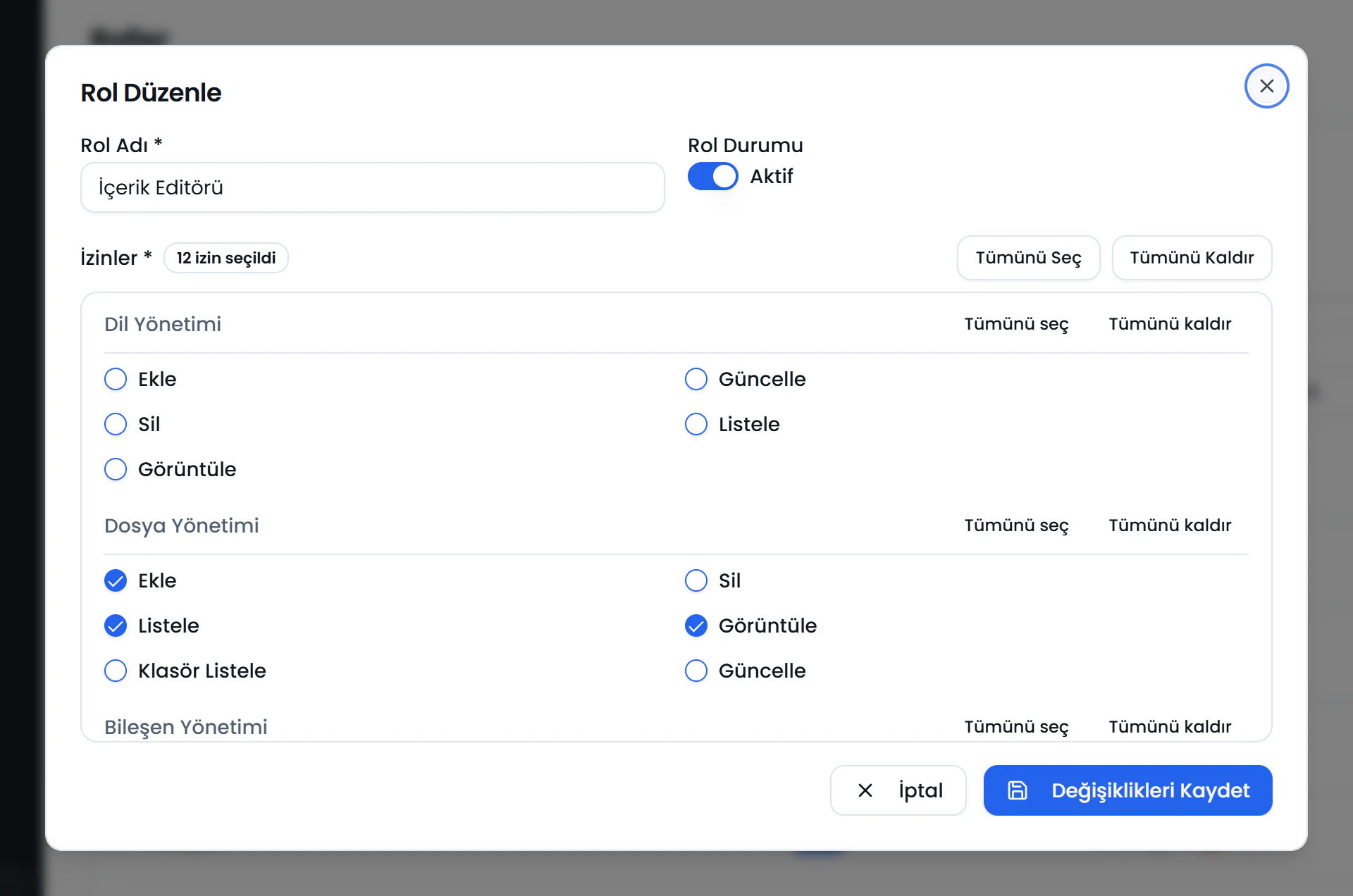
Role Name
Click the numbers or use the ← → keys.
Create an approval role
As an example, create a second role named "Approver". This is not a built-in system role. Give it the same permissions as the editor role, plus Approve in the Page management group.
Edit roles
On the Roles tab, click Edit on the role's row, or open it with View and choose Edit in the Role details dialog. In the Edit Role dialog:
- Change the Role Name.
- Add or remove permissions under Permissions. Select all and Clear all apply to every permission; Select all and Clear all in a group heading apply only to that group. A role must have at least one permission.
- Click Save Changes.
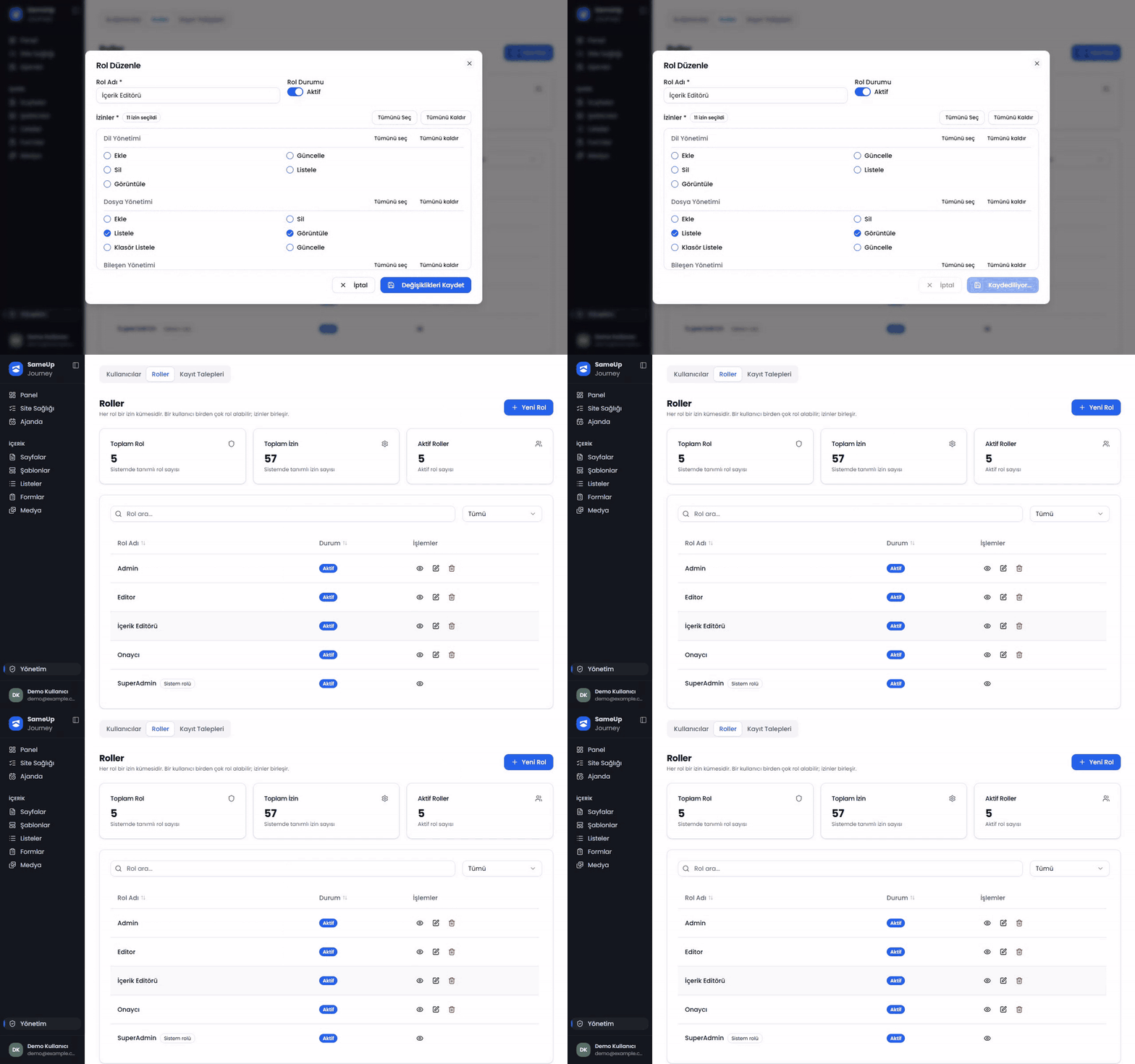 The File management › Add permission is removed from the Content Editor role and Save Changes is clicked
Deactivate a role
In the Edit Role dialog, switch Role Status to Inactive and save. An inactive role isn't removed from users, but its permissions don't count. The user detail notes which roles are inactive and therefore don't contribute permissions. You can filter the role list by Active or Inactive with the Status filter.
Delete a role
Click Delete on the role's row. In the Delete Role dialog, type the role's name to confirm and click Delete. This can't be undone.
A role can't be deleted while at least one user (active or inactive) has it. You'll see the message "Users are assigned to this role. Update their roles first!". Remove the role from those users first.
Role safeguards
SuperAdmin is a system role and appears in the list with a System role badge. The panel hides or locks controls that would break the rules below, and the server enforces them as well.
| Rule | Message shown |
|---|---|
| The SuperAdmin role can't be edited. | The SuperAdmin role can't be changed! |
| The SuperAdmin role can't be deleted. | The SuperAdmin role can't be deleted! |
| The SuperAdmin role can't be assigned to anyone from the panel, even by a SuperAdmin. | The SuperAdmin role can't be assigned from the panel! |
| The SuperAdmin role can't be granted through SSO registration approval. | This role can't be assigned through registration approval! |
| Only a SuperAdmin can edit, delete, or change the password of a SuperAdmin user. | Only a SuperAdmin can act on a SuperAdmin user! |
| Nobody can change their own roles. | You can't change your own roles! |
| A user who isn't a SuperAdmin can't change the permissions of an active role they hold. | You can't change the permissions of a role you hold! |
Whether you count as a SuperAdmin depends only on your active roles. When you edit your own user, the role list is locked; if your roles need to change, ask another administrator.
Add a user
Create the user
On the Users tab, click Create New User. Enter the first name, last name and email. Use Generate password for a strong password, then Copy password to share it with the user.
Assign roles
Select at least one role for the user and click Create.
Check effective permissions
Click View on the user's row to open their detail page. You'll see what each role grants and the combined list of permissions the user ends up with.
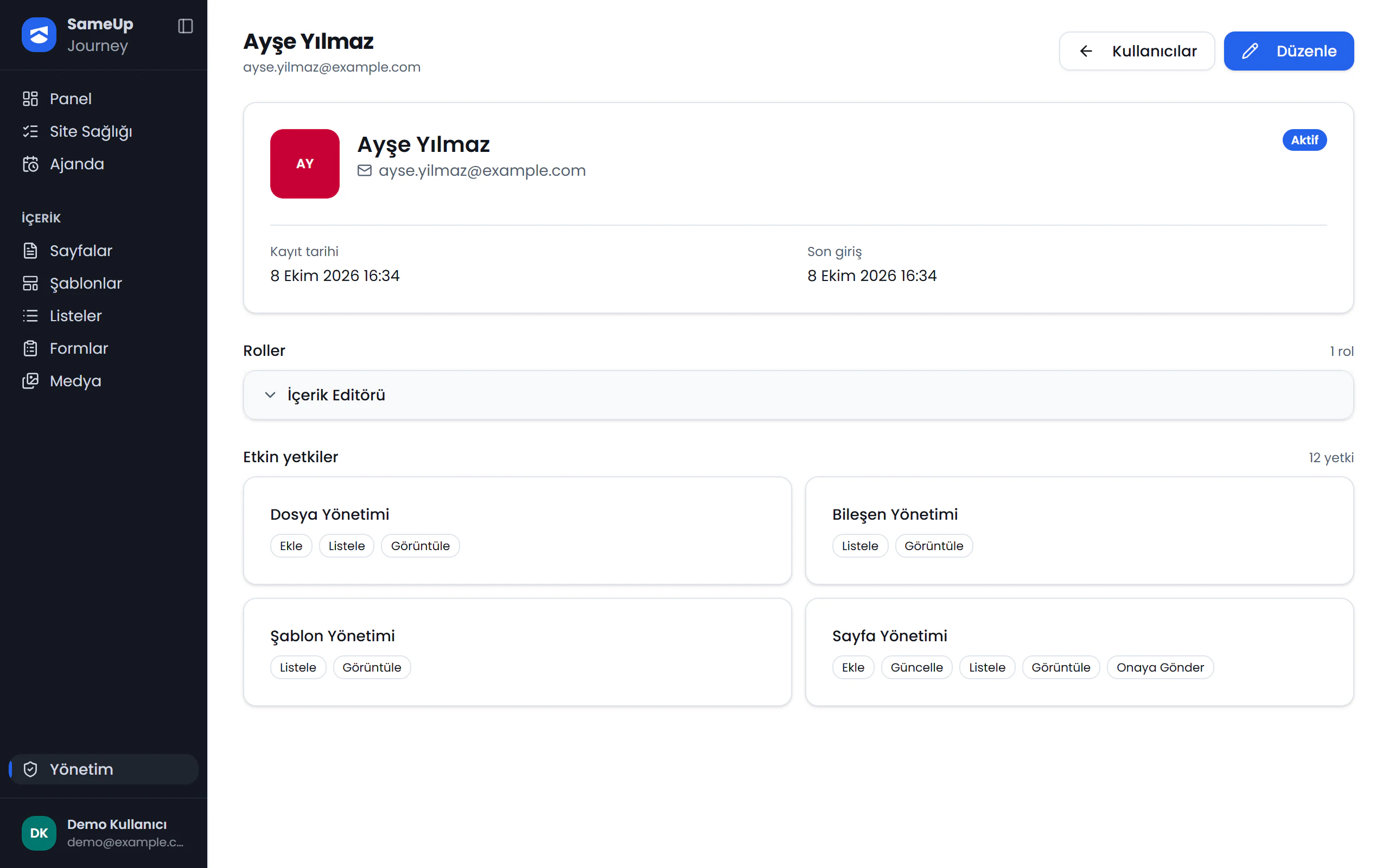
Edit
Click the numbers or use the ← → keys.
The user list shows active status and last sign-in.
Edit a user
Open the Edit User dialog with Edit on the user's row. Click Save after making changes.
- Remove a role: Uncheck the role in the Roles list. The user must keep at least one role.
- Deactivate: Turn off the Active switch. An inactive user can't sign in to the panel.
- Change the password: Enter a new password in Password or generate one with Generate password, then share it with Copy password. If the field is left empty, the password doesn't change. A new password must be at least 8 characters and contain an uppercase letter, a lowercase letter, and a digit.
The panel has no "forgot password" flow; an administrator changes a user's forgotten password from this dialog. Users can change their own password with Change Password in the user menu.
To delete a user, click Delete on the row and type the user's name in the confirmation dialog.
Assign a role to an SSO user
Approve the registration request from a first-time SSO user in the Registration Requests tab, then assign a role. See SSO registration requests for the steps.
Common situations
Check that the role is active. The user detail page lists inactive roles, but their permissions don't count.
If your roles don't include the permission for an action, the server rejects the request without an explanation; check that one of your active roles has the permission. If you have the permission and the action is still blocked, look up the message on screen in the Role safeguards table.
That's expected. Sending for approval and approving are separate permissions. If the user needs to approve, assign a role that includes the approve permission.
The Digest Email column in the Users list shows this. The preference belongs to each user and is turned on from their own Notifications screen; an administrator can't change it from the list.