SEO and GEO
Fill in and publish a page's meta, schema and entity layers.
In this guide you'll use a page's SEO screen: fill in meta tags, add JSON-LD schemas, define entities (GEO) for AI search engines, and publish them.
Three layers
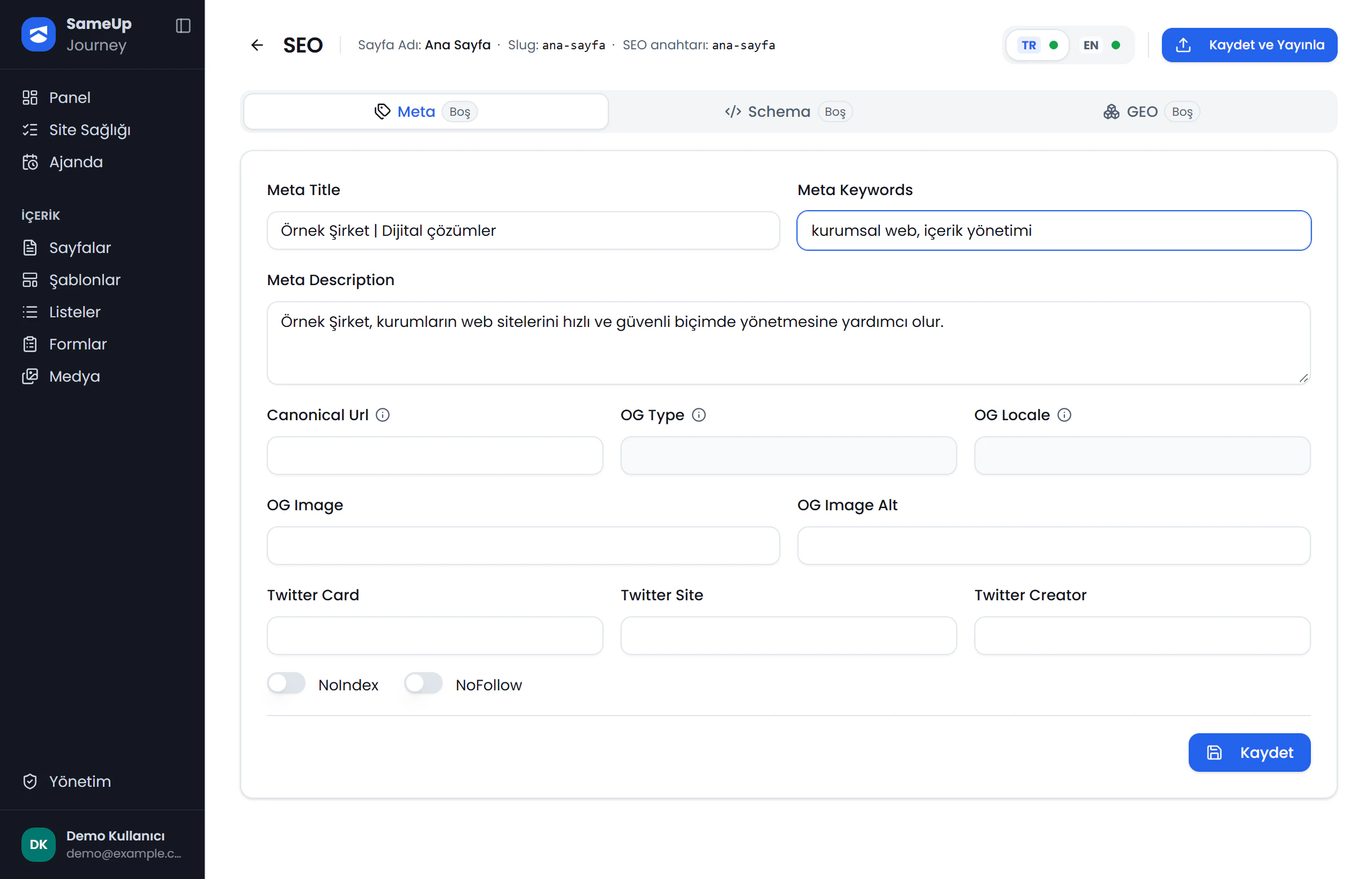
The SEO screen has three layers for every page and every language. Each layer is its own tab.
| Tab | Layer | On the site |
|---|---|---|
| Meta | Meta title, keywords, description, canonical URL, Open Graph, Twitter card, NoIndex, NoFollow | <title>, meta and Open Graph tags, robots |
| Schema | One or more JSON-LD blocks per page | application/ld+json blocks |
| GEO | The organization, product or person the page is about: entity type, name, identifier, relevance score, description | Extra structured data that helps AI search engines understand the page |
If a page has no schema at all, the site generates a WebPage schema automatically.
SEO is independent of page approval
SEO layers have their own draft and publish cycle. SEO changes don't wait for page approval; they go live with Publish.
Enter SEO data
Open the SEO screen
On the Pages screen, click the SEO link on the page's row. The language switch at the top moves between the page's language variants.
Language switch
Click the numbers or use the ← → keys.
Fill in the Meta layer
On the Meta tab, fill in Meta Title, Meta Description, Canonical Url and the Open Graph fields. Click Save. Saving creates a draft.
Add a schema
On the Schema tab, click Add. Fill in the fields by hand or paste JSON-LD, for example an Organization or FAQPage schema. Each schema is a separate row.
Define an entity
On the GEO tab, click Add. Describe the organization, product or person the page is about using Entity Type, Name, Identifier and Description.
Optionally fill with AI
Each layer has a Fill with AI panel. Optionally write an AI instruction and check Include components so the page content is used. Review the result, then save or add it.
AI output is only a suggestion. Always check it before saving.
Publish
Click Publish at the top right. Every layer with a draft goes live. If the Meta form has unsaved changes, the button becomes Save and Publish: it saves first, then publishes.
How drafts and publishing work
- Each tab shows its layer's state: Published, Draft or Empty.
- What you edit in the Meta layer is a draft. If there's no draft, the published value is shown. When a draft field differs from the published one, the published value is shown below it.
- Draft schemas and entities are added to the published ones. Publishing never deletes existing schemas or entities. To remove one, delete it separately.
- To discard a draft, use Delete Draft.
- The preview site shows the draft for the Meta layer, and published plus draft items for the Schema and GEO layers.
Common situations
Page health runs these SEO and GEO checks: no SEO meta (Missing), SEO meta not published, no schema, and no GEO entity (Warning). Click the chip and the panel takes you to the SEO screen.
This feature needs an AI provider configured for your installation. An administrator sets it up on the Settings screen. See Settings › AI.
Saving only creates a draft. Click Publish to take it live.
The panel warns you and offers Stay on Page, Leave Without Saving or Save and Leave.