5.2 · Publishing
Follow approval, rejection, scheduled publishing, and unpublishing in one workflow.
In this guide you'll see how a page moves from the editor to a user with approval permission and on to the live site. “Approver” describes this user's task; it is not a fixed system role.
For every status and the transitions between them, see Publishing workflow.
Separate permissions
Sending for approval and approving are separate permissions. A user may be able to send a page for approval without being able to approve it. See Users and roles.
Editor: set up and send for approval
Set publish dates (optional)
Publish dates take effect after approval. If you need a start or end date, set it before sending the page for approval.
Open the Publishing section
In page settings, open the Publishing section from the left menu.
Enter the start date
In Publish Start, enter the date and time the page should go live.
Add an end date if needed
If the page should come down at a set date, turn on the Set end date switch in the Publish End field and enter the end date.
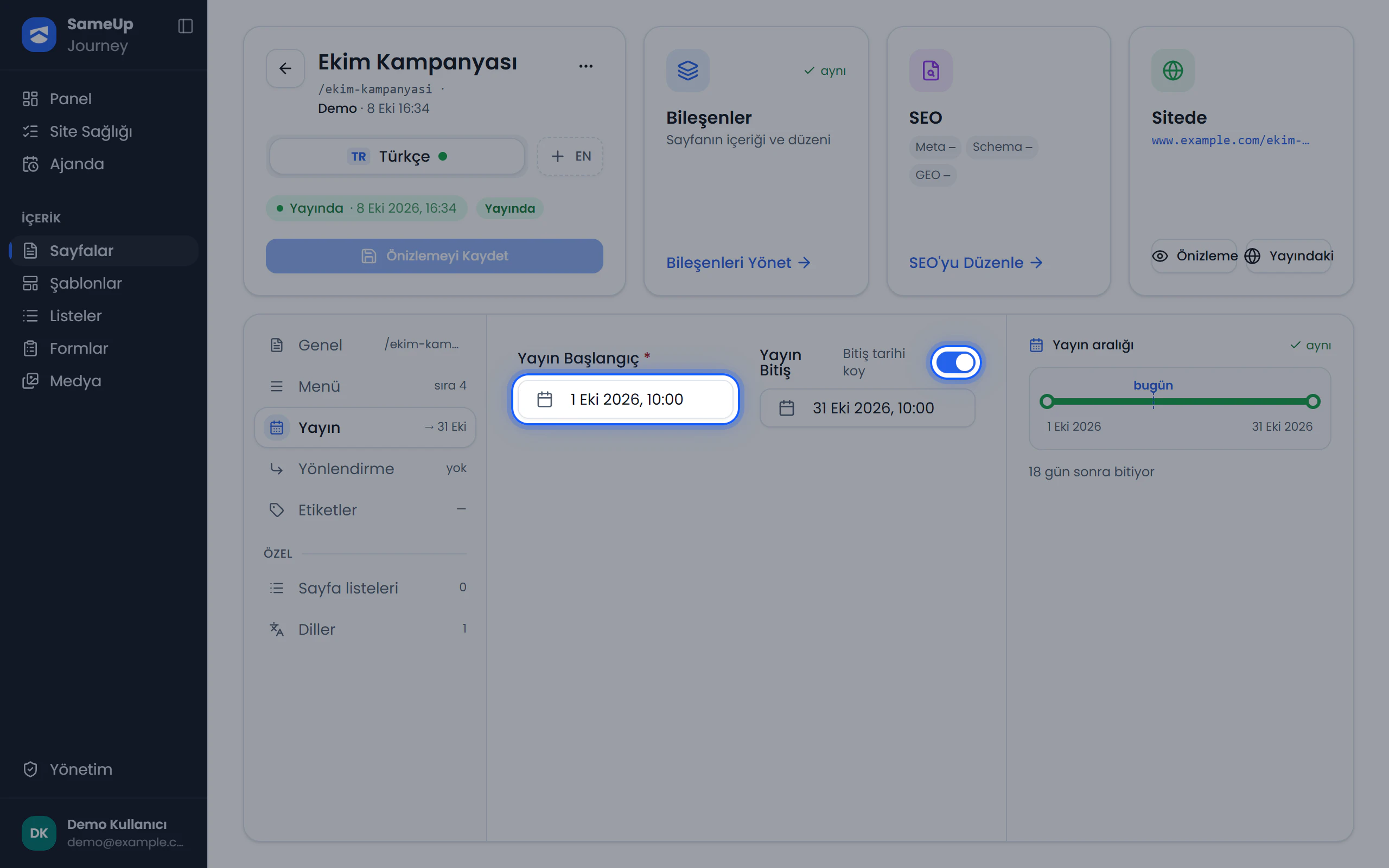 Page settings — Publishing section with end date enabled
Set up the expiry redirect
Open the Redirect section. Turn on Redirect when publishing ends and enter the destination in Target. The page shows its own content until the end date, then redirects visitors to the target.
Redirects need an end date
Redirect when publishing ends only works when the page has an end date. The panel shows a warning if there isn't one.
Send for approval
Save your changes
Click Save in the component editor or in page settings. On a published page, the save goes to the preview copy and the live site doesn't change.
Review the diff
In the component editor, click Review Changes. Added, removed, changed and moved components are color-coded.
Send for approval
- On a published page there is no separate send step. As soon as you save, the preview copy goes for approval and the page becomes Awaiting approval.
- On a page that has never been published, click Send for approval in page settings. The page's status becomes Awaiting approval.
Users with approval permission see the item in the panel and in their notifications.
Multilingual pages
If more than one language of the page is ready to send, page settings show a Send all languages button. It sends every ready language for approval at once. Approval itself is still done one language at a time.
Fix a rejected page
Find the rejected page
On the Pages screen, open the Rejected tab. Go to fix on the row takes you to the page.
Fix and save
Make the needed changes and click Save.
Send it again
A rejected page does not go back to approval on its own when you save it. In page settings, click Send for approval again. The page goes back to Awaiting approval.
Track scheduled pages
- On the Pages screen, the Scheduled filter shows pages waiting to go live, and Ending shows pages about to come down.
- The Agenda screen shows publish starts, ends, and pages still live past their end date in week, month, and list views. See Agenda and notifications.
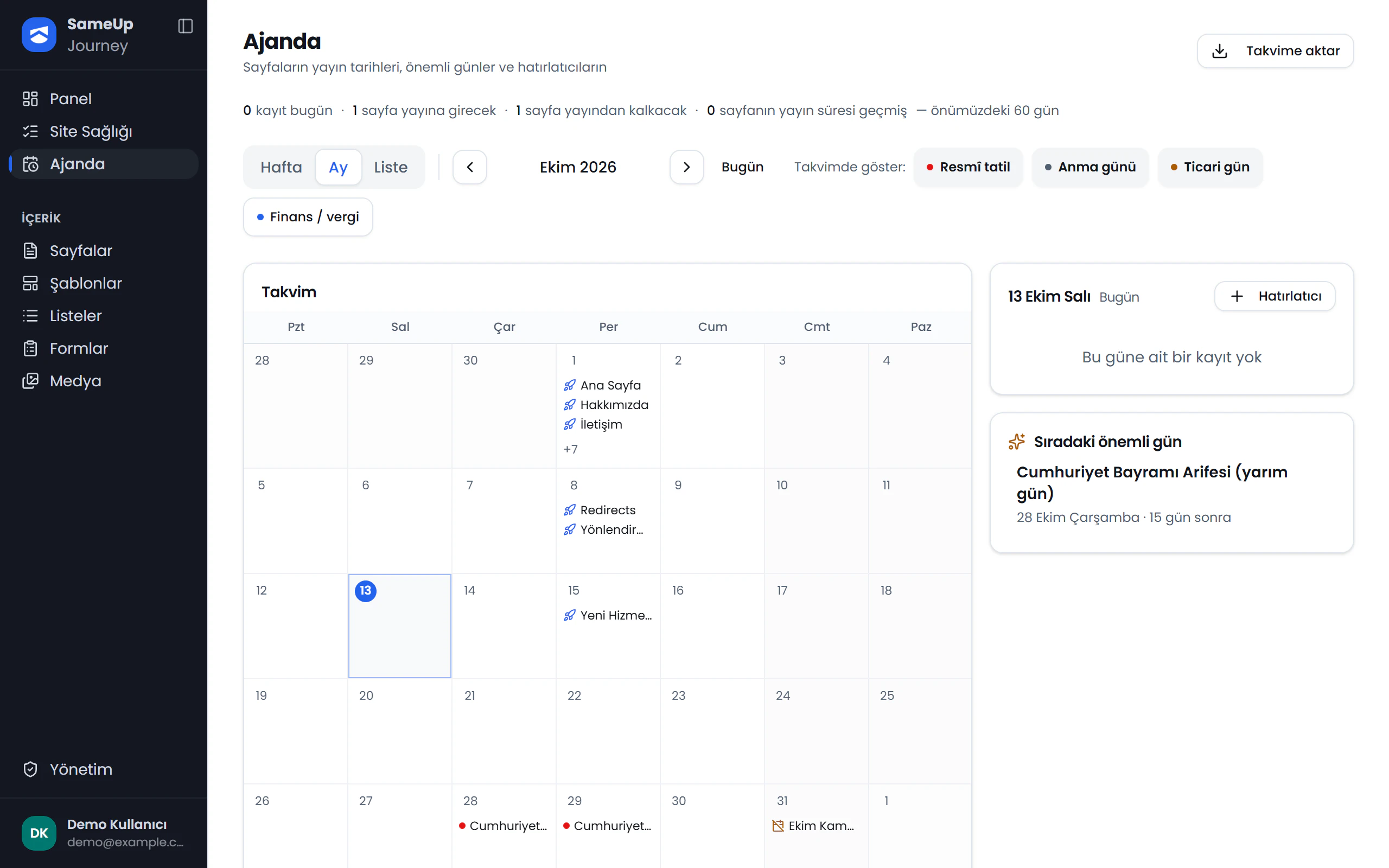 Agenda — month view with publish starts and ends
Unpublished pages
An Unpublished page doesn't appear on the live site. If a redirect is set, visitors go to its target. To bring it back, use Send to publishing on its row on the Pages screen. The page goes through approval again.
Common situations
If an approved copy changes, its approval is dropped and the page has to be approved again.
A published page with a pending change still shows as a single row. A note under the status badge tells you where the change stands: awaiting approval, rejected, or not sent yet.
No. A parent page change is written to both the live record and the preview copy immediately, without waiting for approval.
The reject dialog only asks for confirmation; there's no reason field. Let the editor know what to fix separately.
Check that the page is approved. Dates only apply to approved pages. A page that's Awaiting approval won't go live, even after its date has passed.
A date change is a content change like any other. It goes to the preview copy and reaches the live site after approval.
Pages past their end date are flagged as Missing in page health. Update the date, or let the page come down.
Finished this step?
Mark it to save your progress on the editor path.
Related pages
Publishing workflow
Learn how preview copies, page statuses, approval, and scheduled publishing work.
Users and roles
Create roles, assign them to users, and review their effective permissions.
Agenda and notifications
Track scheduled pages on a calendar, add reminders, and keep up with changes through the daily summary e-mail.