History, errors and visitors
See who changed what, which errors happen on the site, and who visits it.
In this guide you'll learn to use the three monitoring screens of the admin panel: Change history, Errors and Visitors. Each section walks through a common question step by step.
Open the screens
Click Management in the left menu:
- The System card in the Technical section opens the Change history, Archive and Errors tabs.
- The Visitors card in the For you section opens the site's traffic.
You can also search for the screen names in the command palette (Ctrl K).
| Screen | Required permission (System information group) |
|---|---|
| Change history, Archive | Change Log |
| Visitors | Change Log |
| Errors | Global Error Log |
See Users and roles.
Change history
Changes to pages, templates, forms, the component catalog and users are listed here. The screen is read-only; you can't undo a change from it.
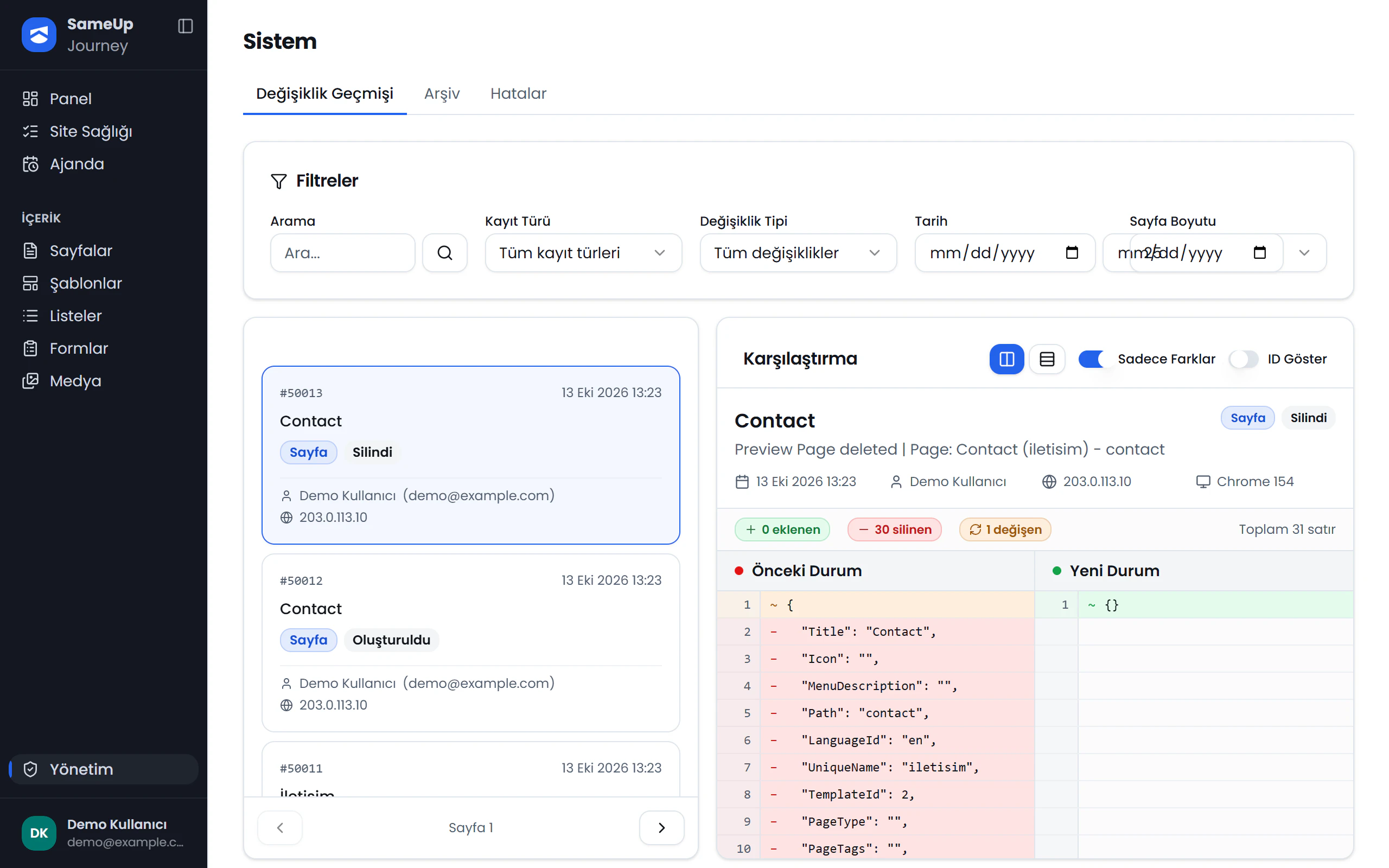
Change history, Archive and Errors
Click the numbers or use the ← → keys.
Scenario: Who changed this page last week?
Set the filters
Open Management › System › Change history. In the Filters card:
- Set Record type to Page. For changes to component content, also try Page component.
- Enter last week's start and end dates in the Date fields.
- Type the page's title or path in Search and press Enter.
Read the list
The newest change is at the top of the list on the left. Each row shows the date, record name, record type, change type, the user who made the change and their e-mail address.
Review the diff
Click a row. The Comparison panel on the right shows Previous state and New state side by side. The number of added, removed and changed lines is shown at the top.
- With Differences only on, only changed lines are shown.
- Unified view merges the two columns into one.
- Show IDs also shows technical ID and date fields.
Scenario: Which pages were published yesterday?
On the Dashboard screen, choose 7 days on the Change flow card and click the green part of yesterday's bar. Change history opens filtered to Page and Published for that day. The Most line under the card shows the users with the most changes in the range.
Scenario: Did a user's password change?
Set Change type to Password changed. The password itself is never stored in any record.
What is recorded
| Record type | Example change types |
|---|---|
| Page | Created, Updated, Deleted, Published, Unpublished, Status changed, Order changed |
| Page component | Components restructured |
| Template, Template component | Template created, updated, deleted, status changed |
| Form | Form created, updated, deleted |
| Component | Component created, updated (catalog), deleted |
| User | User created, updated, deleted, password changed |
| Database table, Archive | Table data viewed, Archive opened, Archive downloaded |
The current panel version also has an Access group record type for private pages. Settings, roles, languages and the files themselves aren't tracked on this screen.
Older records: Archive
The database keeps the last year of records. Older records are archived month by month and kept for five years.
On the Archive tab, choose a month and open a row to see records as Before / After, or download the month's records with Download decrypted file. Every archive open and download is itself written to Change history.
Errors
Errors that occur in the back end of the panel and the site are listed here. The screen is read-only; an error's status can't be changed from the panel.
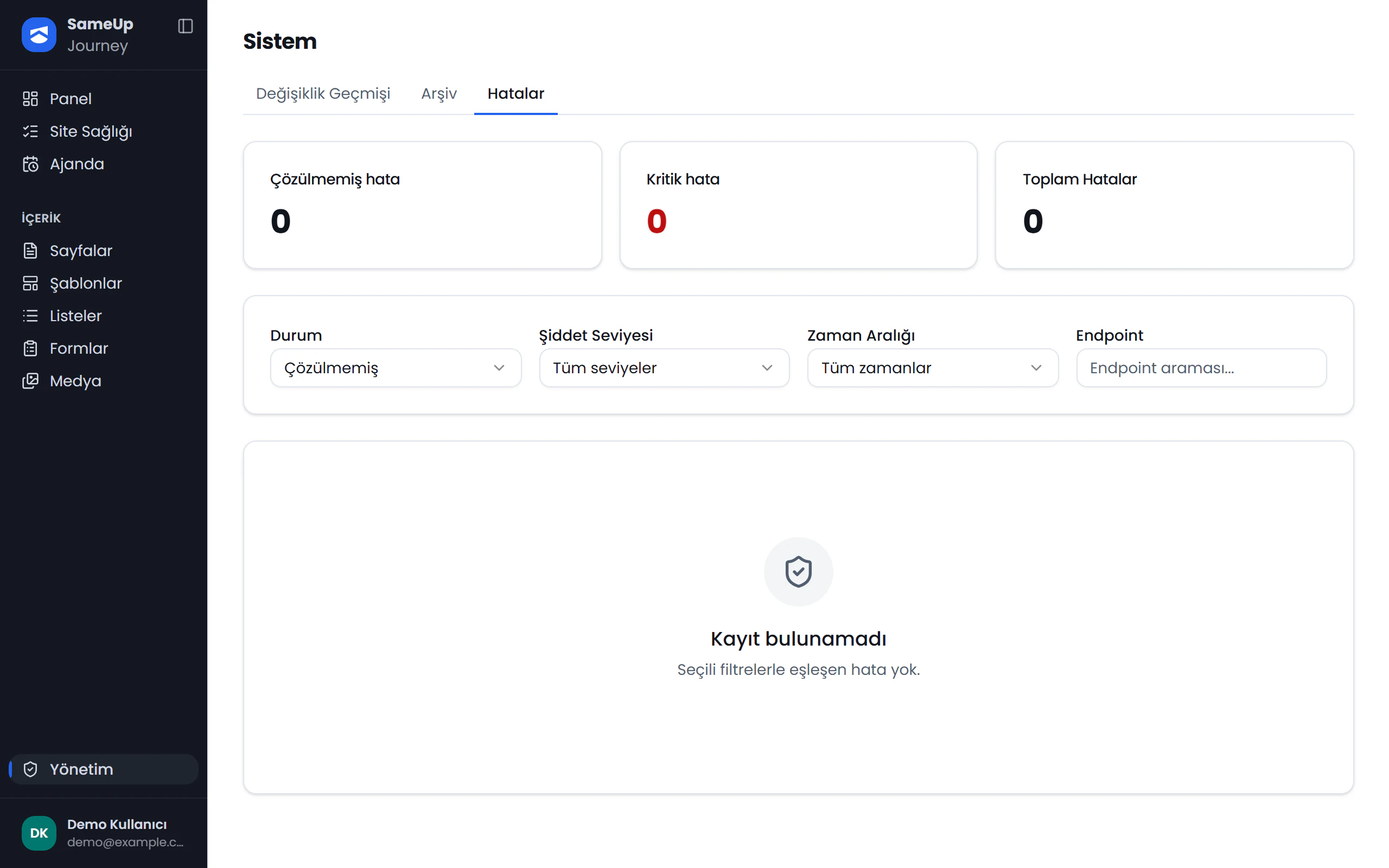
Counters
Click the numbers or use the ← → keys.
Scenario: What's behind the errors that have grown since last evening?
Set the filters
Open Management › System › Errors. Set Time range to Last 24 hours. To include resolved errors, set Status to All statuses; the default is Unresolved.
Find the repeating error
Look at the Repeat count and Last occurrence columns. An unresolved error that repeats within 24 hours with the same address, error type and message doesn't open a new row; it increases the repeat count.
Open the details
Click Details on the row. The Error details window shows Endpoint, Category, Error message, Exception type, the first and last occurrence and IP address. Pass this information to your development team.
Category and severity
| Category | What it means | Severity |
|---|---|---|
| UnhandledException | A request stopped on an unexpected error. | Critical |
| ServiceException | A service logged an error (e.g. a background job). | Error or Critical |
| Audit | A change couldn't be written to Change history. | Error |
The Severity level filter also offers Info and Warning, but the system doesn't produce records at these levels today.
Scenario: Is there a critical error?
If the Unresolved error row appears in the Waiting for you card on the Dashboard screen, it says how many are critical. Clicking the row opens Errors. You can also set Severity level to Critical on the screen.
Error records are deleted after 90 days.
Visitors
Reads the site's traffic from Umami. The Umami connection must be set for the screen to work; see Settings › Analytics and measurement tags. Without it, the screen says Visitor data not connected.
Scenario: How many visits did the campaign page get?
Choose a range
Open Management › Visitors and choose 7, 30 or 90 days at the top. Each value is compared with the previous period of the same length.
Find the page
Look for the page's path in the Pages card, or its title in the Titles card. The cards show the top 8 most visited pages.
Check the source and device
Sources shows where visitors came from (empty means Direct), and Devices which devices they used.
If the page isn't in the top 8, it doesn't appear on the screen. In that case, check Umami's own share page.
What's on the screen
- Visitors, Views, Bounce rate, Average time cards, with the change from the previous period.
- On the site now: visitors in the last 5 minutes.
- Traffic: daily views and visits chart.
- Live: views in the last 30 minutes, with time, page, country and device.
- Breakdowns: Pages, Titles, Sources, Countries, Cities, Languages, Devices, Browsers, Operating systems, Screen sizes.
Scenario: How many people are on the site right now?
The On the site now card covers the last 5 minutes and refreshes every 30 seconds. The Live card updates the pages being viewed every 15 seconds.
At the bottom of the screen are links to the tools' own screens, such as Google Search Console, Bing Webmaster Tools, Yandex Webmaster and Cloudflare.