3 · Create a list
Add structured fields to pages and manage repeating content, such as a news section, with a list.
In this guide you'll use the Lists module to define extra fields for pages and show those pages as a list on the site. We'll build a news section as an example.
What a list is
A list is a schema that adds shared fields to a group of pages. It doesn't touch the component tree. For example, the News / Blog list adds Summary, Cover Image and Publish Date fields to every page in the list.
Lists are for repeating content such as news, announcements, team members and products. Each news item is its own page; the list brings those pages together in order.
Set up the list
Pick a preset
On the Lists screen, click Create from a preset and choose News / Blog. The other presets are Blank list, Announcement, Team Member and Product / Service. Name the list and click Create list.
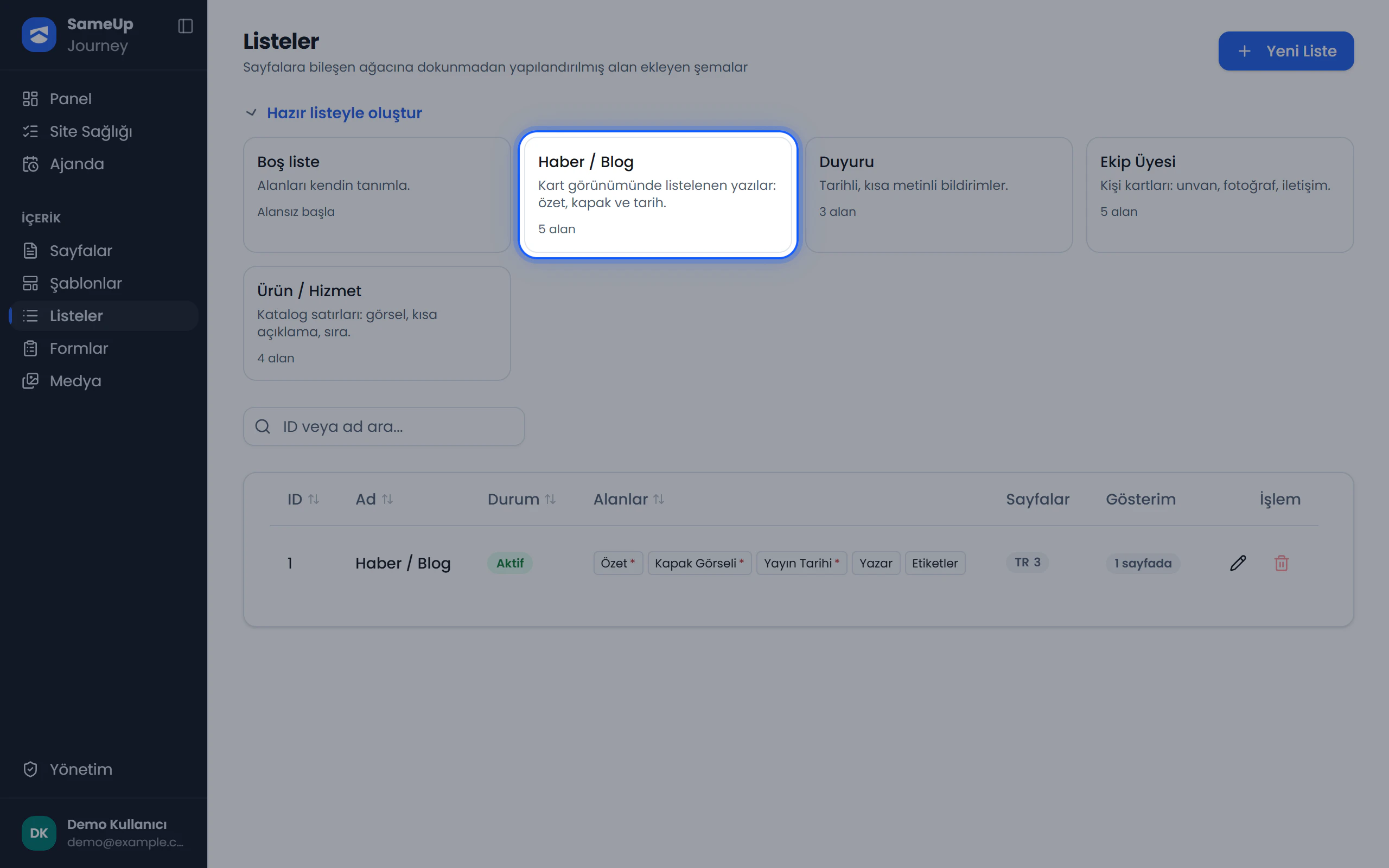 Lists — presets
Check the fields
Check the preset's Summary, Cover Image and Publish Date fields, and add fields if needed. Each field has a label, a required setting and an order.
Add pages
First, create a page for each news item by following Step 5: Create a page. Then, on the list's edit screen, click Add Page, choose the page and enter its field values.
Fill in the values
Fill in values from the entry table. Each row is saved on its own. Required fields can't be left empty.
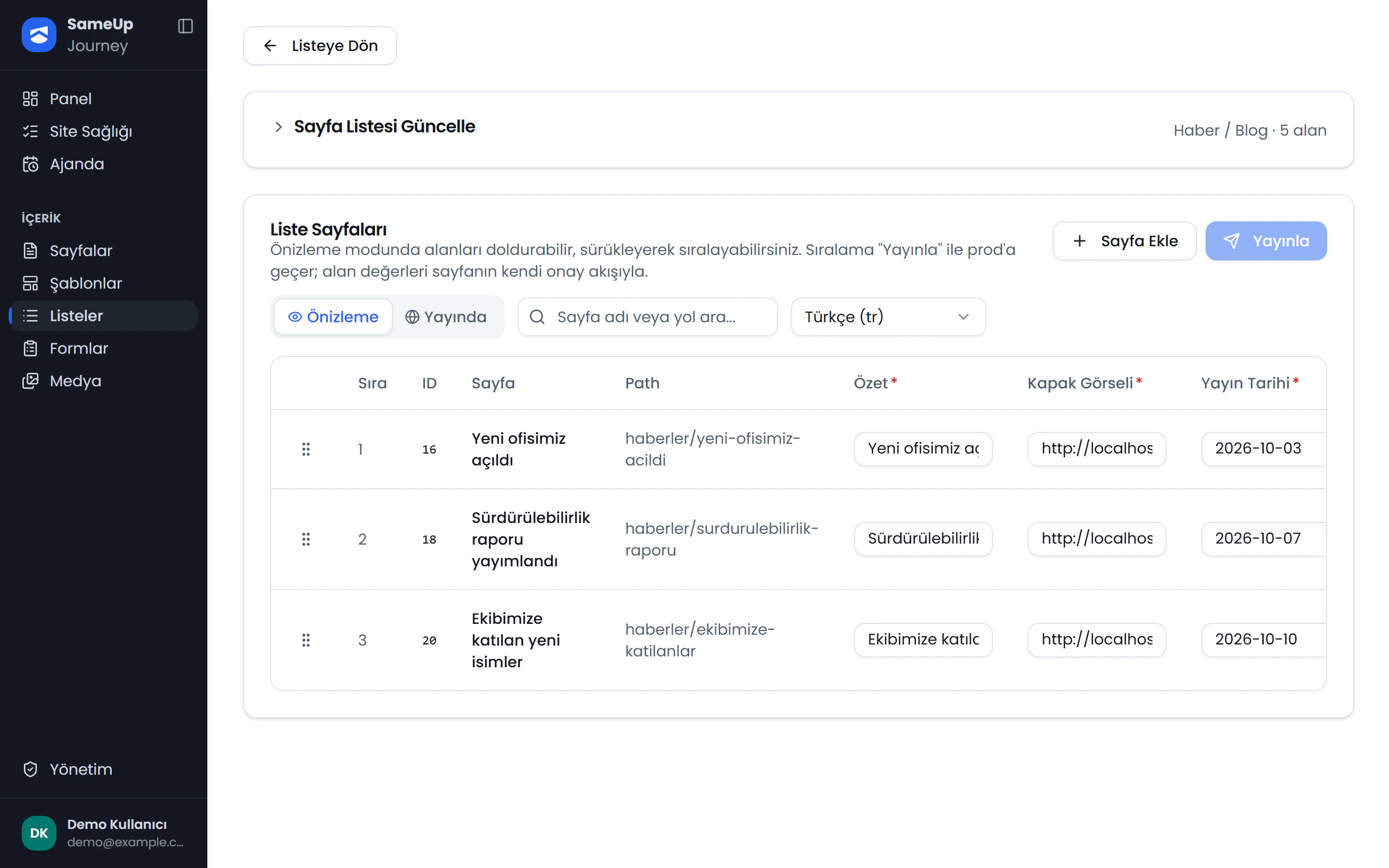
Add Page
Click the numbers or use the ← → keys.
Order and publish
Drag and drop to order the pages, then click Publish.
Place the list on a page
On the Lists screen, click Create component in the list's Display column. The panel creates a List component that renders the list. Add that component to the news listing page's component tree. See Add components.
Publish only publishes the order
The list's Publish button only publishes the order of the pages. Field values go live through each page's own approval flow. If you changed a news item's summary, the change on that page must be approved.
How editors use lists
- The Page lists section in page settings shows the lists a page belongs to and its field values in those lists.
- In the component editor, a List component is read-only. The Edit in Lists link takes you to the list's screen.
- The Display column tells you where a list stands: a Create component button if it has no component, no placement if the component exists but isn't on any page, or the number of pages it's used on.
Common situations
You can change a field's label. Its key, however, is derived from the label automatically and locked after the first save. To change the key, delete the field and add it again. When you do, that field's values are lost on every page in the list.
One of the row's required fields is probably empty. Required but empty cells are highlighted. Fill in every required field and save again.
Drag and drop is disabled while you search the entry table. Clear the search and try again.
A list that still contains pages can't be deleted. Remove the pages from the list first.
Check that a List component for it is placed on a page and that the page is published.
Finished this step?
Mark it to save your progress on the editor path.