Meet the dashboard
Get to know the admin panel home screen, pending work, and quick-access tools.
Updated 27 October 20262 min read
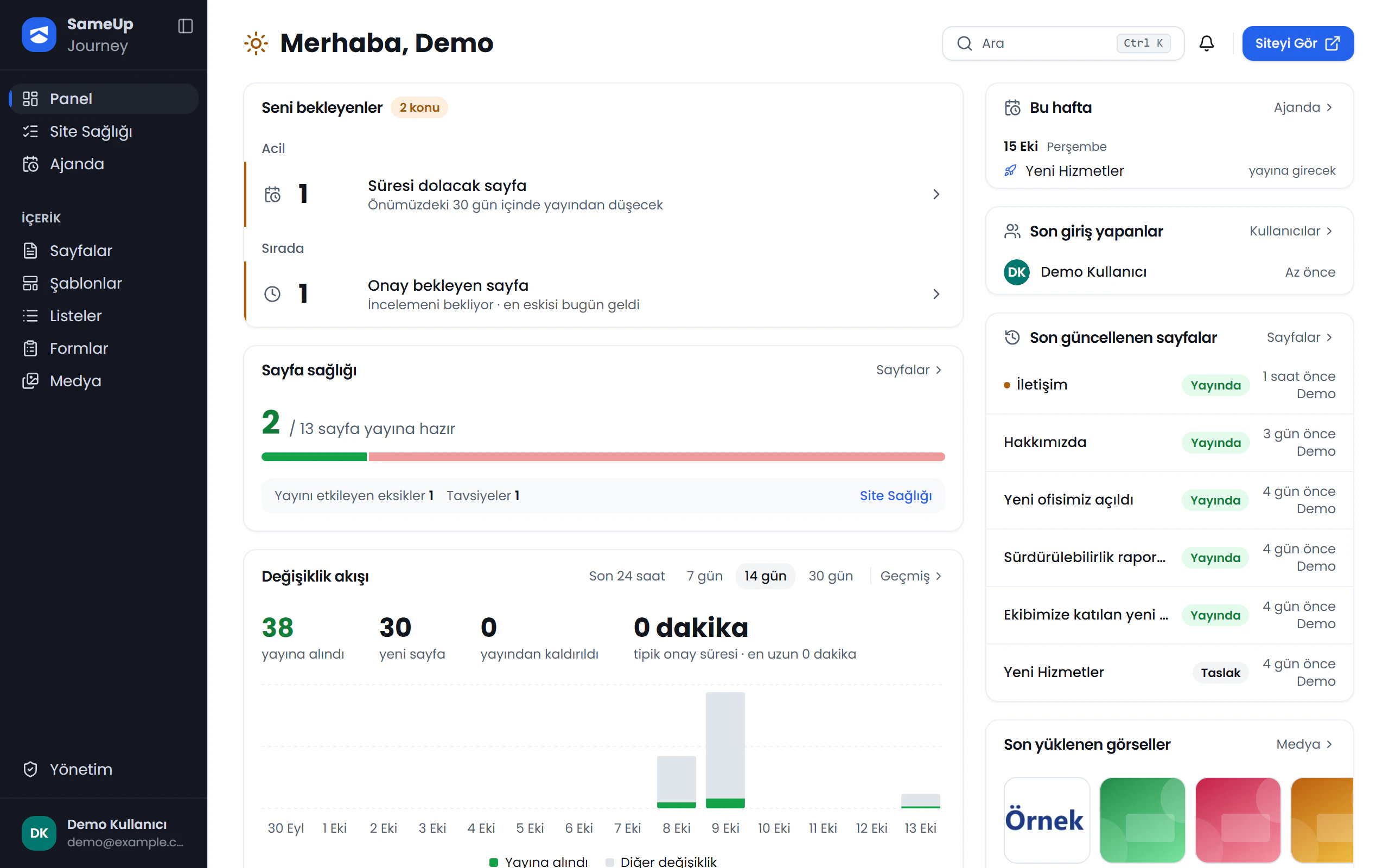
The Dashboard is the home screen shown after you sign in, and it is visible to all users.
1
Left-hand menu
Move between admin panel screens from here. Under Content you'll find Pages, Templates, Lists, Forms and Media.
1/6
Click the numbers or use the ← → keys.
Home screen cards
| Area | What it shows |
|---|---|
| Waiting for you | Unresolved errors, new form submissions, failed notifications, pages awaiting edits or approval, and other pending work. Select a row to open the corresponding filtered screen. |
| Page health | A summary of content status and issues that need attention on pages. |
| Change flow | A summary of recent activity across content and administration. |
| Form submissions | The status of new form submissions. |
Notifications
Pending work and related activity also appear in notifications. Users can opt in to a daily digest email; this preference belongs to the user and is changed from their Notifications screen. See Users and roles for details.
Navigation and quick access
- Use the left-hand menu to move between admin panel screens.
- Open the command palette with
Ctrl+K(or⌘Kon Mac) to quickly access screens. - Filters for list screens are stored in the URL, so you can share a view with others.