4 · Build a form
Create a form, set up its fields and submission flow, and track submissions in the inbox.
In this guide you'll build a form without writing code, translate its fields, run email and webhook steps when it's submitted, and manage incoming submissions.
A form is a Form component whose children are form fields. For a form to work on the live site, it has to be placed on a page and that page has to be published.
Create the form
Pick a starting point
On the Forms screen, choose one of the Create from a preset cards: Blank Form, Contact, Newsletter or Meeting Request. You can also describe the form to AI and let it generate the fields.
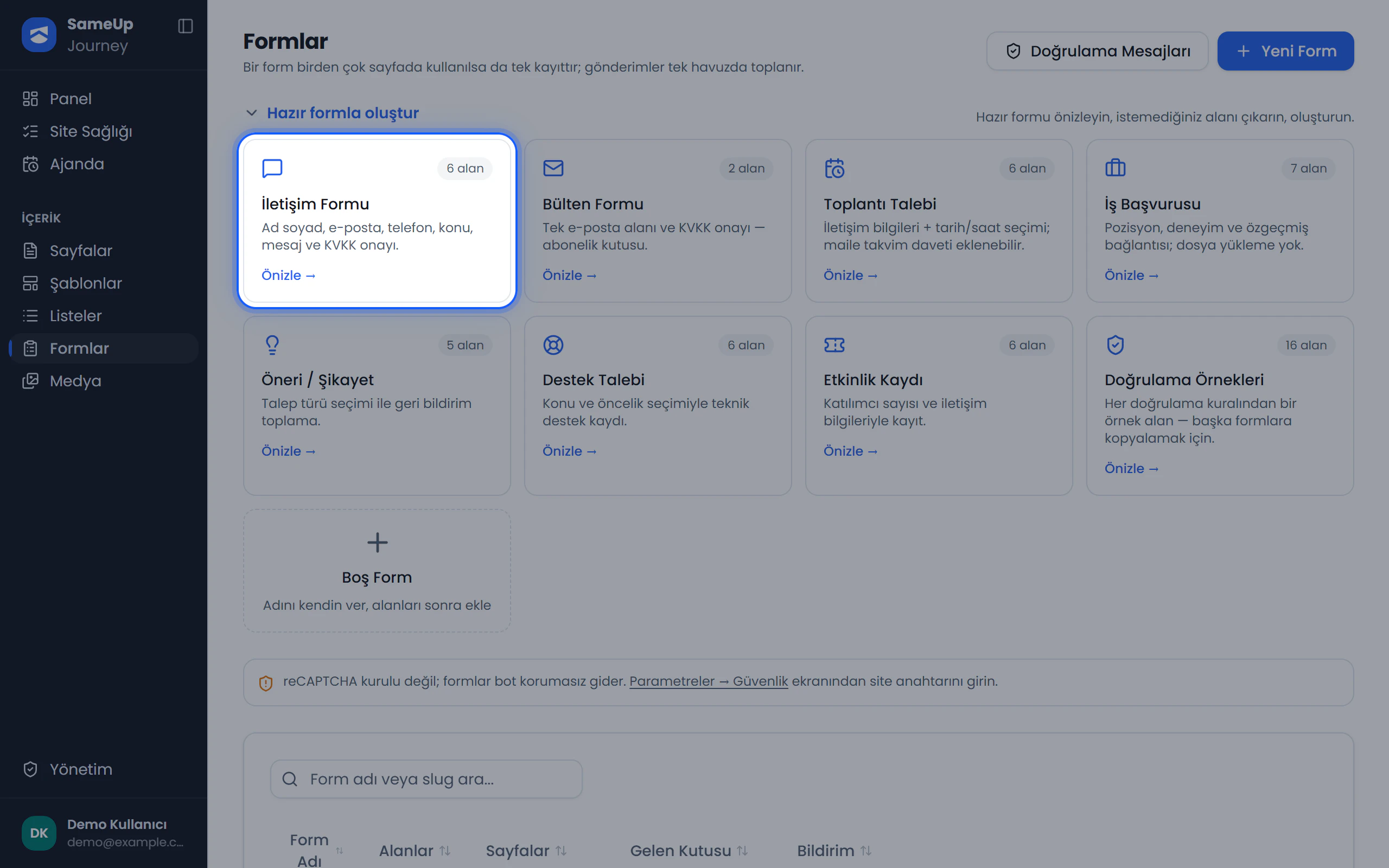 Forms — Create from a preset cards
Review the fields and name the form
In the dialog, remove any fields you don't want and give the form a name. Optionally choose the page the form should appear on. The form is added to that page through its preview copy.
Set up the fields
Open the Form Fields view
On the form's edit screen, switch to the Form Fields view. Use Add Field to add fields from the catalog (such as Full Name, Email, Phone, or a privacy consent checkbox), or copy fields From another form.
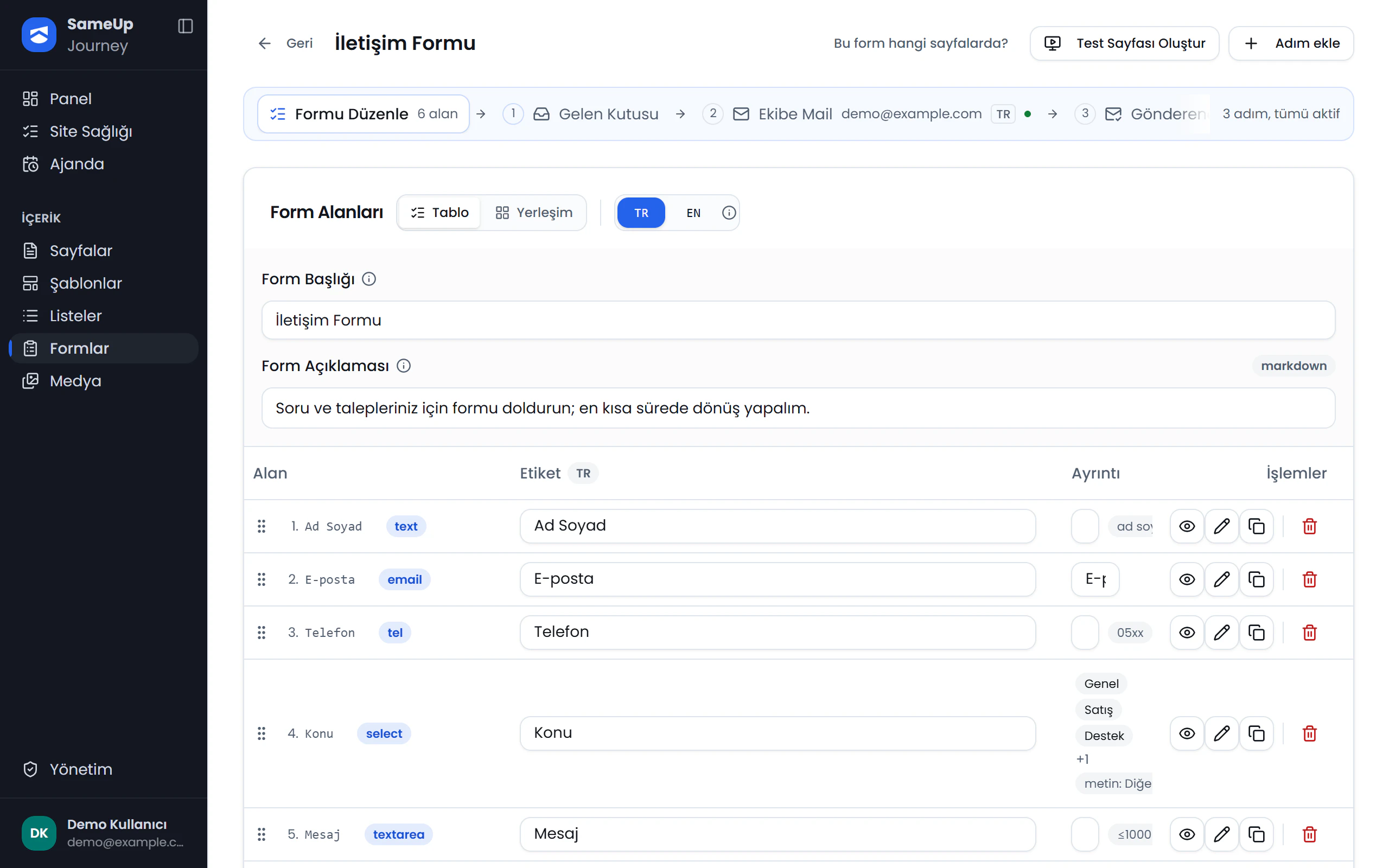
Submission flow
Click the numbers or use the ← → keys.
Configure each field
For each field, set the label, placeholder, description, options, default value and Required. Choose the field's width: full, 3/4, 2/3, 1/2, 1/3 or 1/4.
Add validation rules
Add ordered validation rules to fields. Test each rule on its own with a sample value using Try.
Save
Click Save in the header of the field list. Field text, order, width and required settings are saved together with this button.
Translate other languages
Use the language picker in the header to switch to another language and translate labels and options. To edit the site's error messages per language, use the Validation Messages screen.
Set up the submission flow
The submission flow is the set of steps that run when the form is submitted. Each step is either an email or a webhook.
Open the Submission Flow view
Switch to the Submission Flow view. Forms created from a preset come with a ready-made flow: a notification email to you and a thank-you email to the sender in their language.
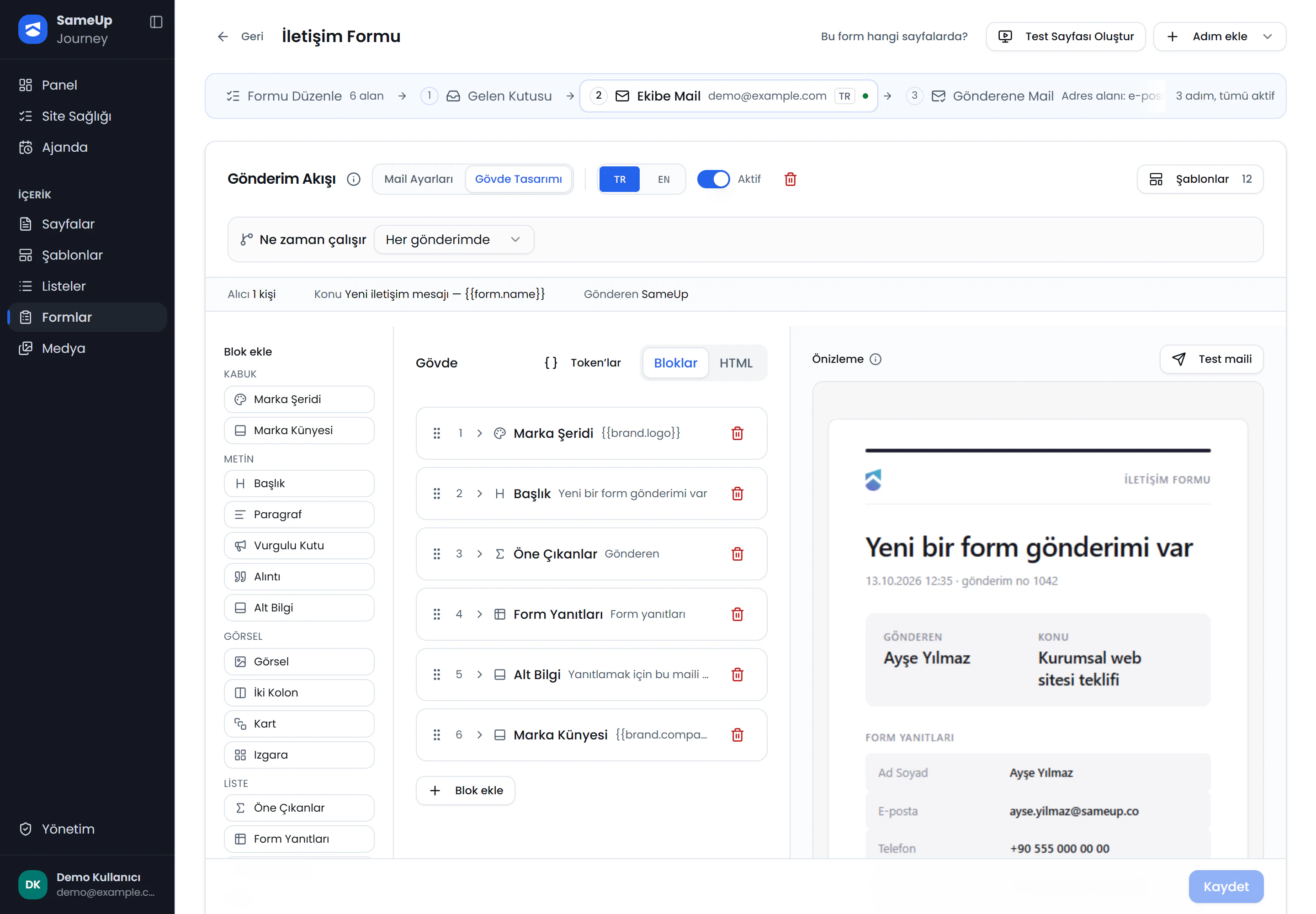
Flow steps
Click the numbers or use the ← → keys.
Edit the email steps
Enter the recipient, subject, sender and reply-to address. Design the email body with the block catalog and pick a theme. Check the preview.
Add a webhook if needed
To pass submissions to another system, add a webhook step. Check the payload in the preview.
Send a test email
Use Send test email to see how the email looks in your own inbox.
Steps can vary by language and can be conditional. For example, if "Subject = Sales", send an email to the sales team and a webhook to the CRM; otherwise send an email to the general inbox.
Place the form on a page
If you selected a page while creating the form, it was added to that page's preview copy. To add it to a different page, place the Form component in that page's component tree; see Add components.
Test and publish
Create a test page
On the form's edit screen, click Create Test Page. The panel opens a test page that contains only this form. Fill it in and submit it.
Check the submission
Open the Inbox and confirm the submission arrived and its notifications were delivered.
Send the page for approval
Send the page the form is placed on for approval. Once the page is published, the form works on the live site. See Approval.
Inbox
- Search submissions and organize them with Mark as important or Archive.
- Export submissions to Excel.
- See each submission's notification delivery status. Requeue a failed notification with Retry.
- Even if a form is used on several pages, all its submissions land in a single inbox.
- Use Submission Access to limit who can see submissions to specific users.
Spam protection
Forms are protected by captcha. Supported providers are Google reCAPTCHA v2, reCAPTCHA v3 and Cloudflare Turnstile. Captcha isn't a form field: an administrator sets up the provider and its keys once on the Settings screen, and every form uses it at submission time. See Settings › Form security.
Email provider settings are also managed by an administrator. See Settings › Mail.
File uploads need captcha
File upload fields in a form only work when captcha is configured.
Common situations
Check that the page the form is on is published. Changes to the page don't reach the live site until they're approved.
Use Copy on the form's row in the form list to duplicate it with its fields. To reuse only the email and webhook steps, copy them from another form on the Submission Flow screen.
Check the submission's notification status in the Inbox. Deliveries are retried in the background. Click Retry if needed. If the problem persists, ask your administrator to check the email provider settings.
Finished this step?
Mark it to save your progress on the editor path.