Agenda and notifications
Track scheduled pages on a calendar, add reminders, and keep up with changes through the daily summary e-mail.
In this guide you'll learn where to track when your pages go live or come down, how to set reminders for yourself, and how to keep up with changes other people make.
| Question | Where to look |
|---|---|
| What goes live or comes down this week? | Dashboard › This week card, or Agenda |
| What's coming in the next two months? | Agenda › List |
| Is there anything I need to deal with now? | Dashboard › Waiting for you |
| What did others change? | Notifications and the daily summary e-mail |
Agenda
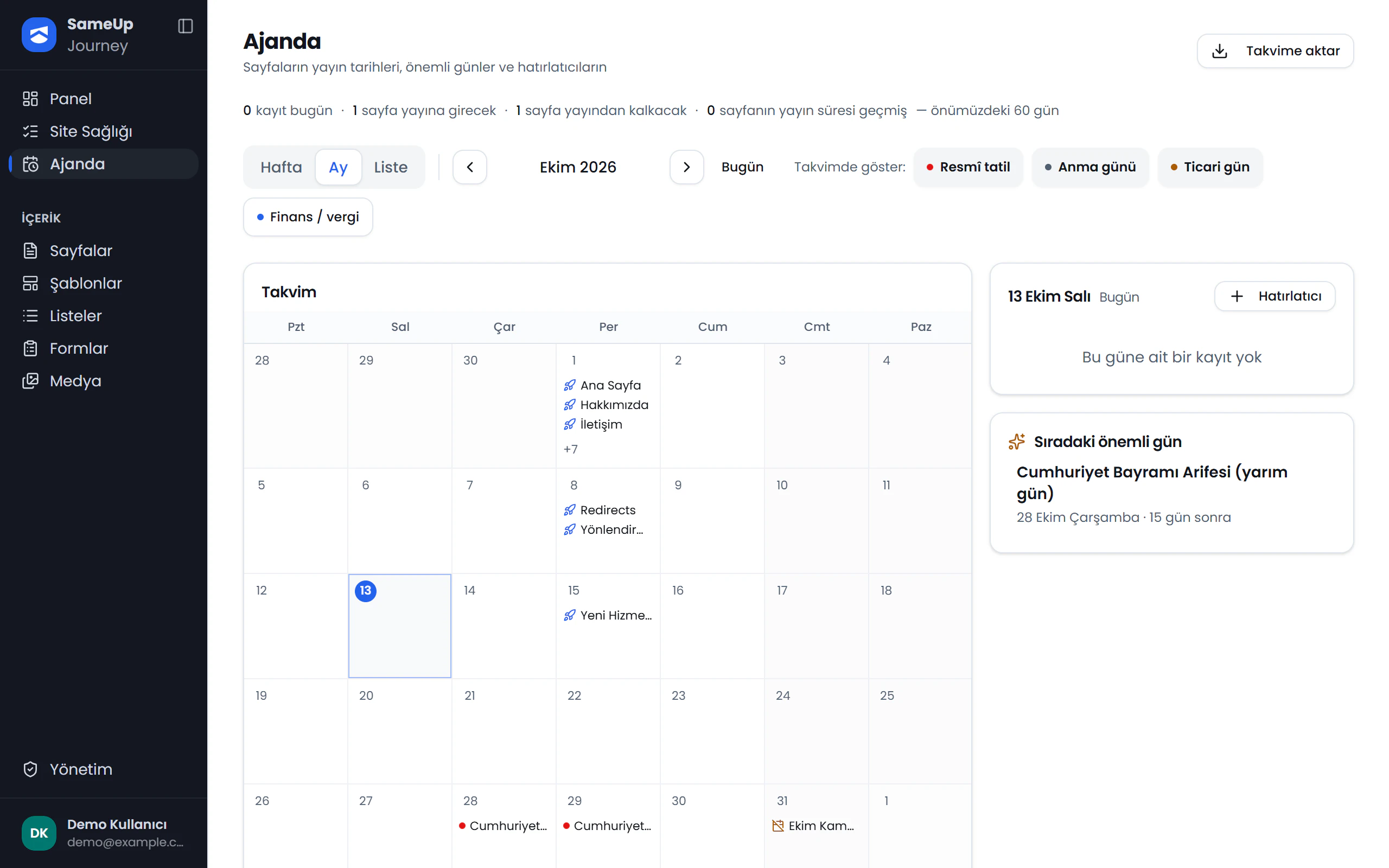
Agenda shows pages' publish start and end dates, important days and your own reminders on one calendar. The agenda only displays; approving and publishing happen on the Pages screen.
Click Agenda in the left menu, or use the Agenda link on the This week card of the Dashboard screen. Viewing the agenda requires the List or View permission in the Page management group.
Summary
Click the numbers or use the ← → keys.
Views
- Month (default) and Week: calendar grid. Move to the previous or next period with the arrows, and back to today with Today. Weeks start on Monday. Clicking a day lists its entries in the card on the right. You can browse past months too.
- List: a 60-day timeline from today.
The summary line at the top shows today's entries and the number of pages going live and coming down in the next 60 days.
What appears on the calendar
| Entry | Label | Meaning |
|---|---|---|
| Publish start | Will go live / Went live | The page's publish start date. |
| Publish end | Will come down / Came down | The page's publish end date. |
| Overdue | Expired, still live | A page still live after its end date. |
| Important day | — | Public holidays, commemoration days, commercial days and tax dates. |
| Reminder | — | Reminders you added. |
Pages in all languages are shown together; each row shows the page's language code. Clicking a page row opens the page's settings.
Use the Show on calendar line to choose which groups of important days appear: Public holiday, Commemoration day, Commercial day and Finance / tax. This choice is stored only in the browser you're using.
You can't filter to your own pages
The agenda has no language, entry type or "only my pages" filter. You see all scheduled pages of the team.
Scenario: Which pages go live this week?
Look at the week
Open Agenda and switch to Week. Pages going live this week appear on their go-live day with a rocket icon and the Will go live label. For a quick look, you can also use the This week card on the Dashboard screen.
Check that the page is ready
Click the entry to open the page's settings. An approved page goes live by itself when its start date arrives. If the page is still a draft or awaiting approval, it won't go live on that date; see Publishing.
The Publish time filters on the Pages screen answer the same question as a list:
- Scheduled: approved or live pages whose publish start is in the future.
- Ending: pages whose publishing ends within 30 days.
- Ended: pages whose publish period is over and that have come down.
Scenario: Is any page still live past its end date?
If so, a red Live past its publish period card appears at the top of Agenda, and the summary line shows the number of overdue pages. The same case is listed in Site health as Publish period expired.
Pages past their end date are taken down in the background every minute, so this card is normally empty. If it stays filled for a long time, let your development team know.
Reminders
Reminders are visible only to you. A reminder can be for a single day or for a task that spans several days.
Choose the day
In Agenda, click the reminder's day. Today is selected by default.
Add the reminder
Click Reminder in the day card's header. Fill in Title, click the day once in the Date calendar (or the start and end once each for a task spanning several days), add a Note, optional if you like, and click Add.
Follow up
When its day arrives, the reminder is marked on the agenda and shows on the This week card of the Dashboard screen. When the task is done, tick its box in the day card. Click the title to edit it, or the trash icon to delete it; deleting doesn't ask for confirmation.
A reminder is e-mailed only if the daily summary e-mail is on. There is no separate reminder alert in the app or the notification bell. Reminders can't have a time of day.
Scenario: Remind me before the campaign ends
Set a reminder
Add a reminder a few days before the campaign page's end date, for example "October campaign ends: prepare the replacement page".
Turn on the e-mail
To get the reminder by e-mail too, turn on Daily summary e-mail on the Notifications screen. The reminder arrives once, in the first summary e-mail after its day.
Export to your own calendar
The Export to calendar button downloads a calendar file (.ics). Import it into Outlook, Google Calendar or Apple Calendar. The file holds upcoming page publish dates, your unfinished reminders and the important days you selected; each entry gets an alert one day before.
The file is a snapshot, not a live subscription. To get new dates, download and import the file again; existing entries are updated, not duplicated.
Notifications
Notifications lists changes other people made while you were away that you should know about. Your own changes aren't listed.
Open the screen from the Management › For you › Notifications card. The unread count appears on the Management row of the left menu, and the latest notifications under the bell icon on the Dashboard screen.
Seeing notifications requires the Change Log permission in the System information group. To get notifications for a record type, you also need that type's list permission; for example, Page management › List for page notifications.
Which changes are notified
- Page status changes: Sent for approval, Rejected, Approved, Published, Unpublished and others.
- Deleting pages, templates, forms and components; template and component status changes.
- Creating and deleting users, and role changes.
Ordinary content edits, form submissions and errors aren't notifications. Form submissions and errors appear on the Waiting for you card of the Dashboard screen. For all changes, use the Full change history link at the bottom of the screen.
Use the list
- Turn off types you don't want in the Which notifications do I get? card. A type you turn off disappears from both the list and the daily summary e-mail.
- Narrow the list with the search box and the record type filter.
- After reading, click Mark all as read. Notifications can't be marked read one by one, and opening the screen or the bell doesn't mark them read.
The list covers the last 7 days (or the time since you last marked all as read) and at most 50 rows. Changes to the same record on the same day are combined into one row.
Scenario: Let me know when an approval request comes in
When a page is sent for approval, it appears under the bell and in the Notifications list as Sent for approval; if the daily summary e-mail is on, it's in the e-mail too. You see the whole approval queue in the Page awaiting approval row of Dashboard › Waiting for you.
No instant e-mail
There is no instant e-mail for approval requests or rejections. The notification goes to everyone with the page list permission; it isn't routed to approvers only. The fastest way is to watch the bell and the Waiting for you card.
Daily summary e-mail
Turn it on
Turn on the Daily summary e-mail switch at the top right of the Notifications screen. It's off by default and only controls the e-mail; the bell and the list stay on.
Preview it
Use View summary to see what today's e-mail would look like. The preview sends nothing.
The e-mail has three sections:
- Your reminders: reminders whose day has come.
- What others did: notifications since the last summary (at most 20 rows).
- Upcoming publishing: pages going live and coming down in the next 7 days.
If there are no reminders and no new changes, no e-mail is sent that day. You can turn the summary off without signing in using the Stop receiving this e-mail link at the bottom of the e-mail.
The summary is sent about every 24 hours. There is no fixed send time; the first summary arrives within an hour of turning the switch on. For e-mails to go out, an administrator must have set up an e-mail provider; see Settings › Mail.
I can't see the Notifications screen
Notifications and the Daily summary e-mail switch require the Change Log permission. If you don't have it, ask your administrator to add it to your role; see Users and roles.