Publishing workflow
Learn how preview copies, page statuses, approval, and scheduled publishing work.
This page walks through the statuses a page moves through, from draft to live to unpublished, and what happens behind the scenes on approval.
Preview copy and live version
Every published page has two records in the database: the live version shown on the live site, and the preview copy that editors work on.
The first time you click Save on a published page, a preview copy is created and the editor switches to it. The live version is unchanged.
Every later save goes to the preview copy. The preview site shows this copy.
On approval, the two records swap roles: the approved copy becomes the live version, and the old live version becomes the new preview copy. Subpages are attached to the new live version.
In the page list, each page appears as a single row. A note under the status badge, such as "change awaiting approval", "rejected", or "not sent", tells you about pending changes.
Exception: parent page
A page's parent, meaning its place in the menu, is written to both records immediately and does not wait for approval.
Statuses
| Status | Meaning | Who moves it forward |
|---|---|---|
| Draft | A new page that has never been published and is being edited. | Editor: Send for approval |
| Awaiting approval | Waiting for a user with approval permission to decide. | User with approval permission: Approve / Reject |
| Changes requested | A user with approval permission rejected it. It appears under the Rejected tab in the page list. | Editor fixes and resends it |
| Approved | Approved. If the start date is in the future, it is scheduled. | System, when the start date arrives |
| Published | Visible on the live site. | System, when the end date passes |
| Unpublished | Taken offline. Redirects to a fallback address if one is set. | Editor: sends it back to publishing |
Draft ──Send for approval──► Awaiting approval ──Approve──► Approved ──(start date)──► Published
│ │
Reject (end date)
▼ ▼
Changes requested ──resend──► Awaiting approval Unpublished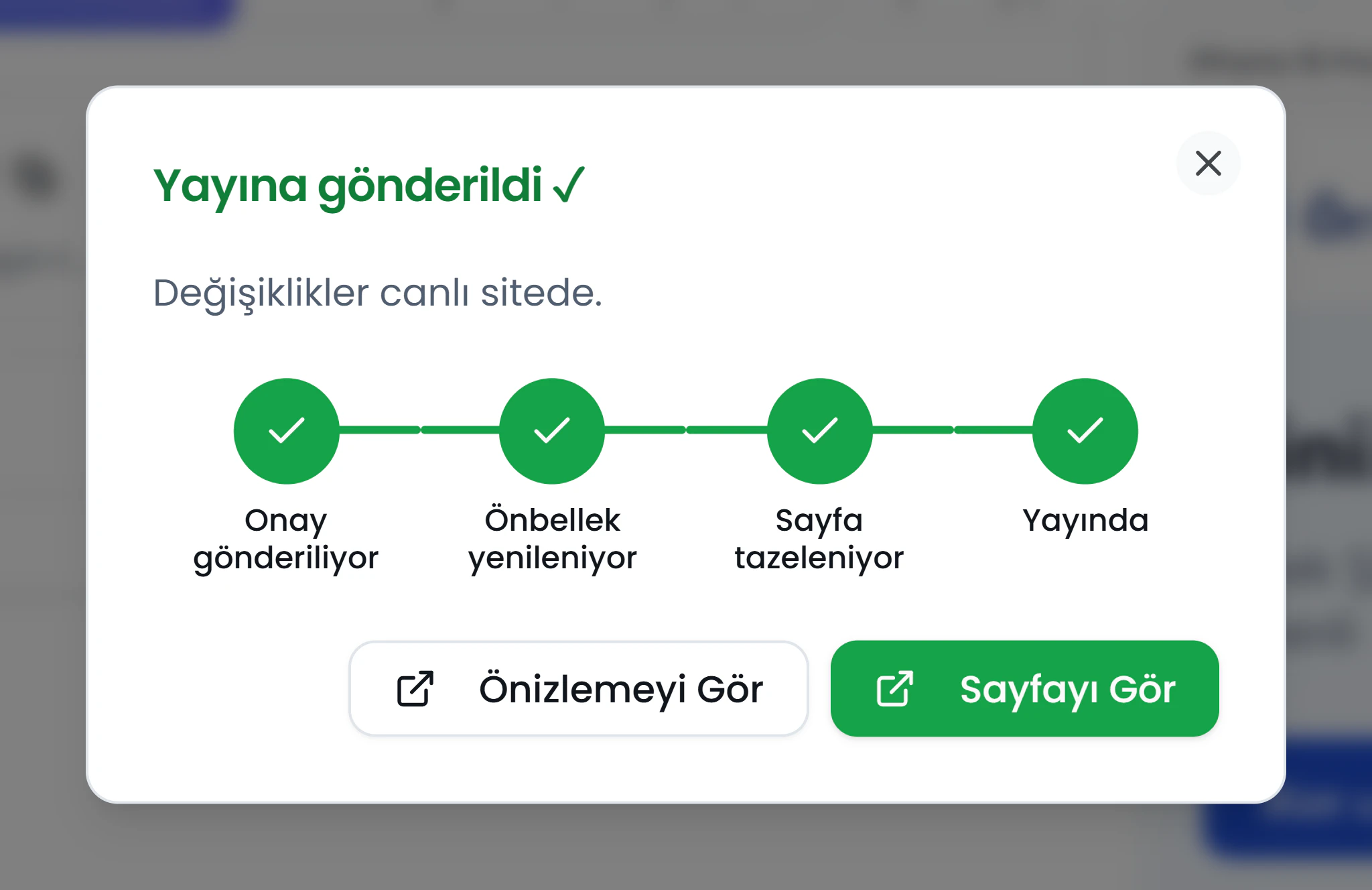 Approval progress dialog — sending approval, revalidating cache, published
Scheduled publish and unpublish
In the Publishing section of page settings, you can set a start date and an optional end date. A background job runs every minute: it publishes approved pages whose start date has arrived and unpublishes pages whose end date has passed. The site also checks publishing dates on its own, so a future-dated page never appears early.
To send visitors elsewhere when publishing ends, choose "Redirect when publishing ends" in the Redirect section.
See the Publishing and scheduling guide for step-by-step instructions.
Templates
Templates have their own approval flow: Draft, Awaiting approval, Changes requested, and Approved. The preview copy model applies to templates too.
See the Publishing and scheduling guide for approval and scheduling steps.