Translate a page
Create a page variant in another language and prepare its localized content.
This guide covers creating a variant of an existing page in another language and preparing its translation. If you need to add a language first, follow Create a language.
Create a language variant
Open the Language Variants section
On the page's Edit Page screen, go to the Language Variants section and click Create New Language Variant. The button appears only if there is still a language without a variant for this page.
In the language switcher on the page edit, components, and SEO screens, languages without a variant are shown as a dashed + button; you can also create a variant from there.
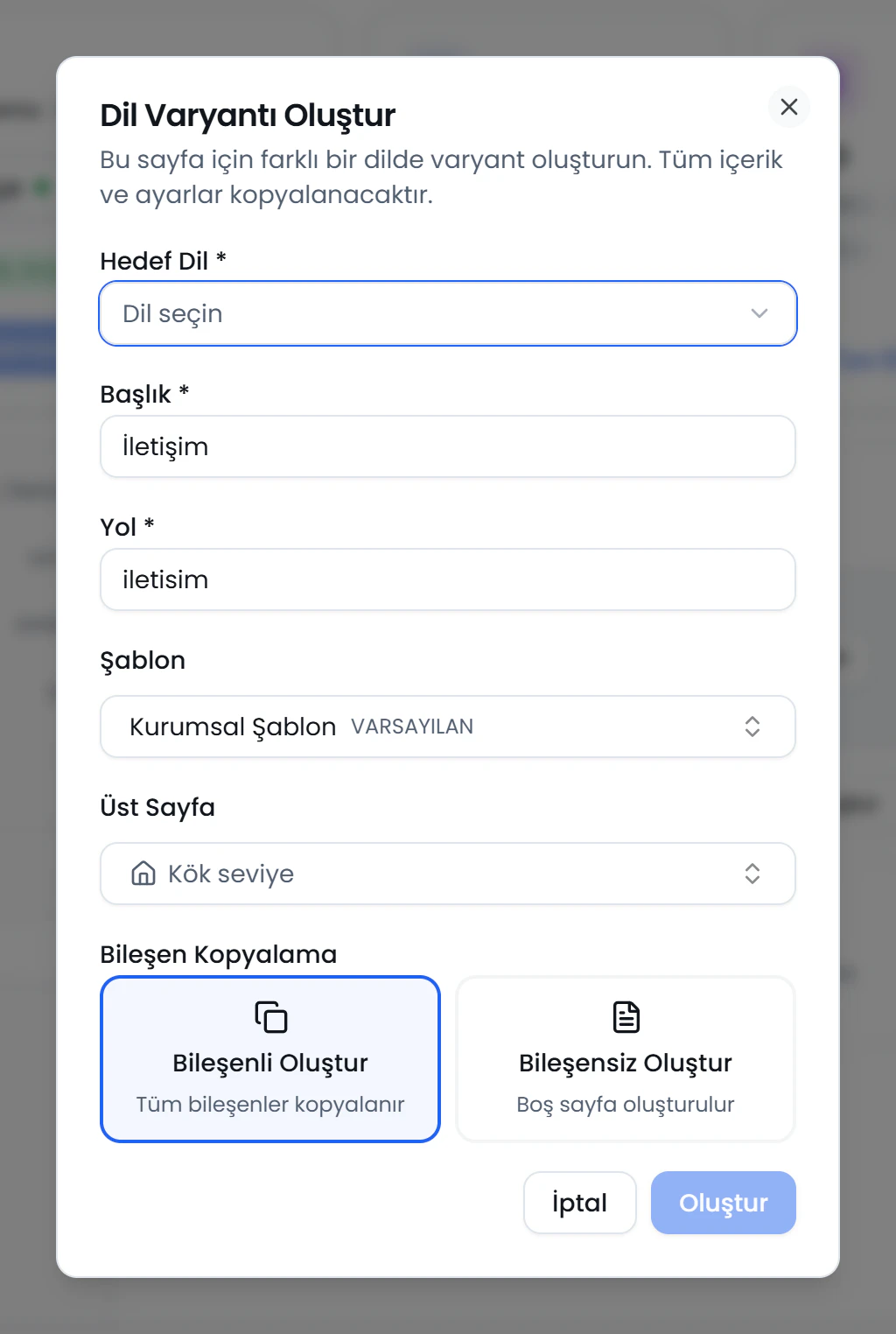
Target Language
Click the numbers or use the ← → keys.
Enter the variant details
In the Create Language Variant dialog, fill in Target Language, Title, and Path. The title, path, template, and parent page are prefilled from the source page. The template list shows only templates in the target language.
Choose whether to copy components
Under Component Copying, choose one option:
- Create with components: All components of the source page are copied to the new variant, and you translate the content.
- Create without components: An empty page is created.
Click Create.
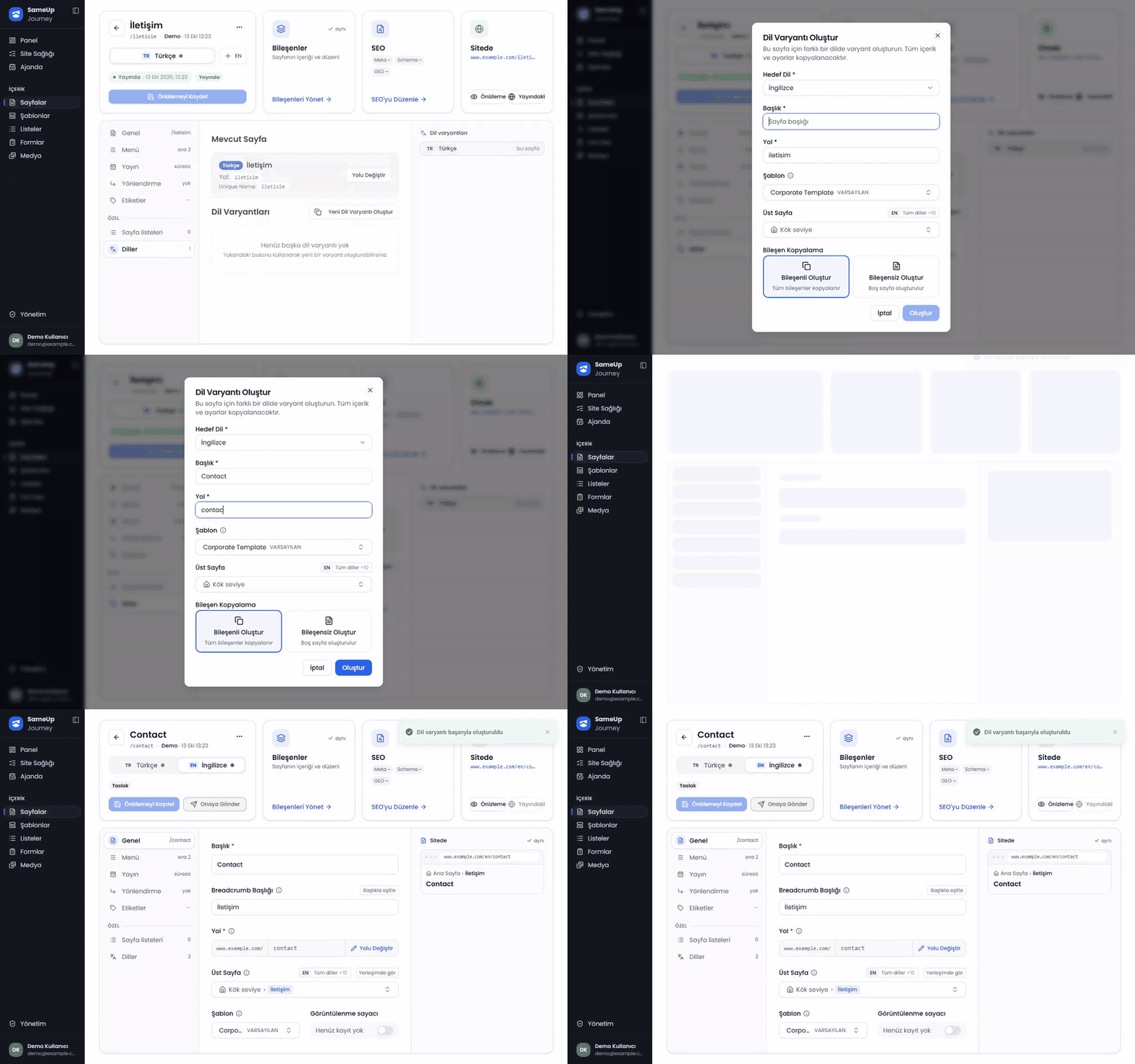 An English variant of the Contact page is created: target language, title, and path are entered and Create is clicked
Translate the page content
- Edit the page's text and component content in the new language's component tree.
- Translate the language-specific properties of form fields. The field title is shared because it generates the key used in submissions. See the language-picker steps in Build a form for details.
- Set the site's validation error messages for each language in Validation Messages.
- Prepare SEO data for each language separately. The SEO screen lets you switch between language variants; see SEO and GEO for details.
Missing language warning
Page health shows the Missing language warning when the page has no variant at all in one of the site's active languages. A warning icon appears in the language cell of the Pages list; hover over it to see the missing language codes.
- The variant only needs to exist: a draft or unpublished variant also counts. Translation quality is not part of this check.
- Inactive languages that are still being prepared don't trigger the warning.
- Pages that redirect are not checked.
- If the same warning appears on 10 or more pages, it is removed from the rows and shown collectively under the Site issues filter in the Pages list.
To clear the warning, create a variant for the missing language, enter its content, and send it for approval. On a page without a variant, a visitor who switches language is taken to that language's home page.
Review language statuses
The language selector on the Pages screen uses colors to distinguish each language's publishing status.
| Color | Page status |
|---|---|
| Green | Published |
| Orange | Different from the live version |
| Blue | Awaiting approval |
| Gray | Never published |
Send variants for approval
You can send page variants for approval as they are ready, or use Send all languages in page settings when more than one language is ready. This sends the ready languages together; approval is still done separately for each language. See Publishing for details.