5.1 · Add components
Edit a page's component tree and review the result in the preview.
The Component Editor lets you edit a page's component tree and review the result in the preview.
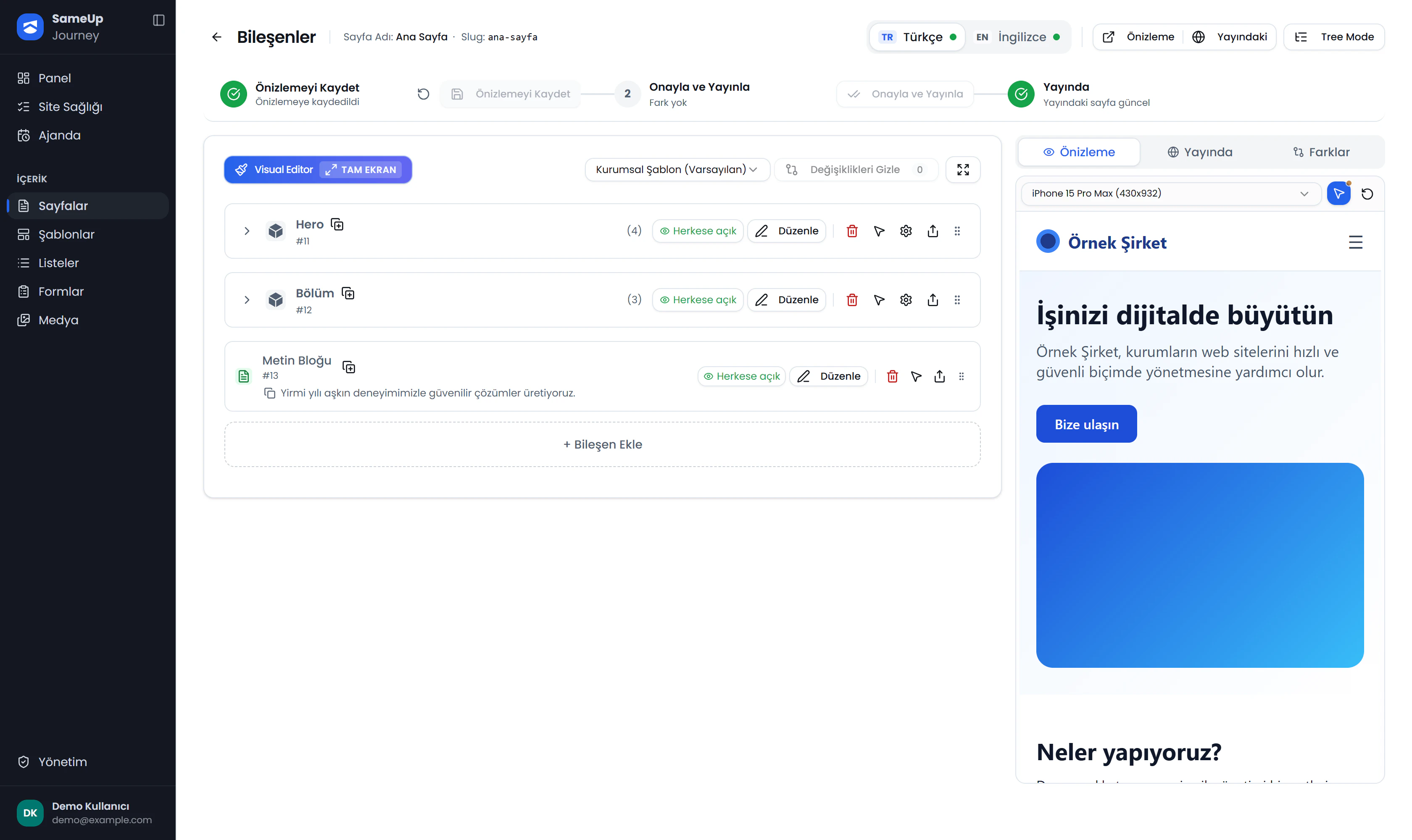
Workflow bar
Click the numbers or use the ← → keys.
What can you do?
- Choose a component from the catalog with Add component. Search finds active components.
- Add child components inside a container. The component tree has no nesting-depth limit.
- Reorder components with drag and drop; duplicate, copy, or delete them, change their visibility, or move them to another page.
- Select a component to edit its leaf fields in the full-screen grid modal. Changes are saved automatically.
- In the preview site, use Inspector to select an item and choose Edit, or locate it in the tree.
- In full-screen Visual Editor mode, click an item on the page to edit it.
- Switch between Preview, Live, and Side by side views. Review added, removed, changed, and moved components in the color-coded diff.
- Check how the page looks on desktop, tablet, and mobile previews.
Understand the component tree
Think of the component tree as the page's boxes and the fields inside them. Container components act like boxes that hold child components; Leaf components are fields that carry text, images, or other values.
For example, a title field might hold a heading, while a description field might hold descriptive text. Where those values appear on the site depends on the structure of the component you selected.
In the example below, the four fields of the Hero component and their counterparts on the page share the same number: Title sets the large heading, Description the text below it, Image the picture, and Button Text the button label.
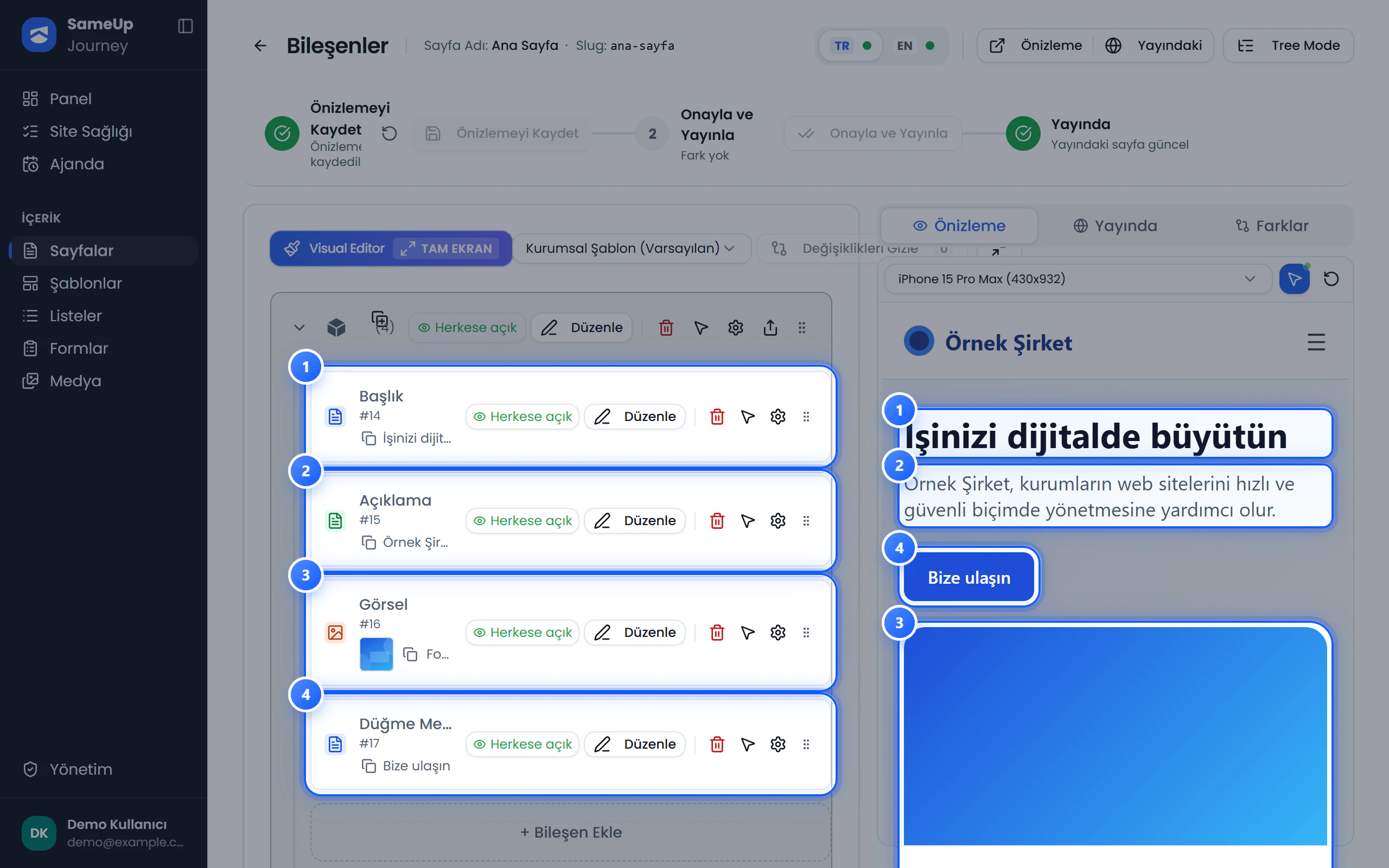 Hero fields in the component tree matched by number to their counterparts in the preview
To find where a field appears on the page, click the cursor icon (Select on page) on that field's row in the tree. With the Inspector on, the preview highlights the field and scrolls to it.
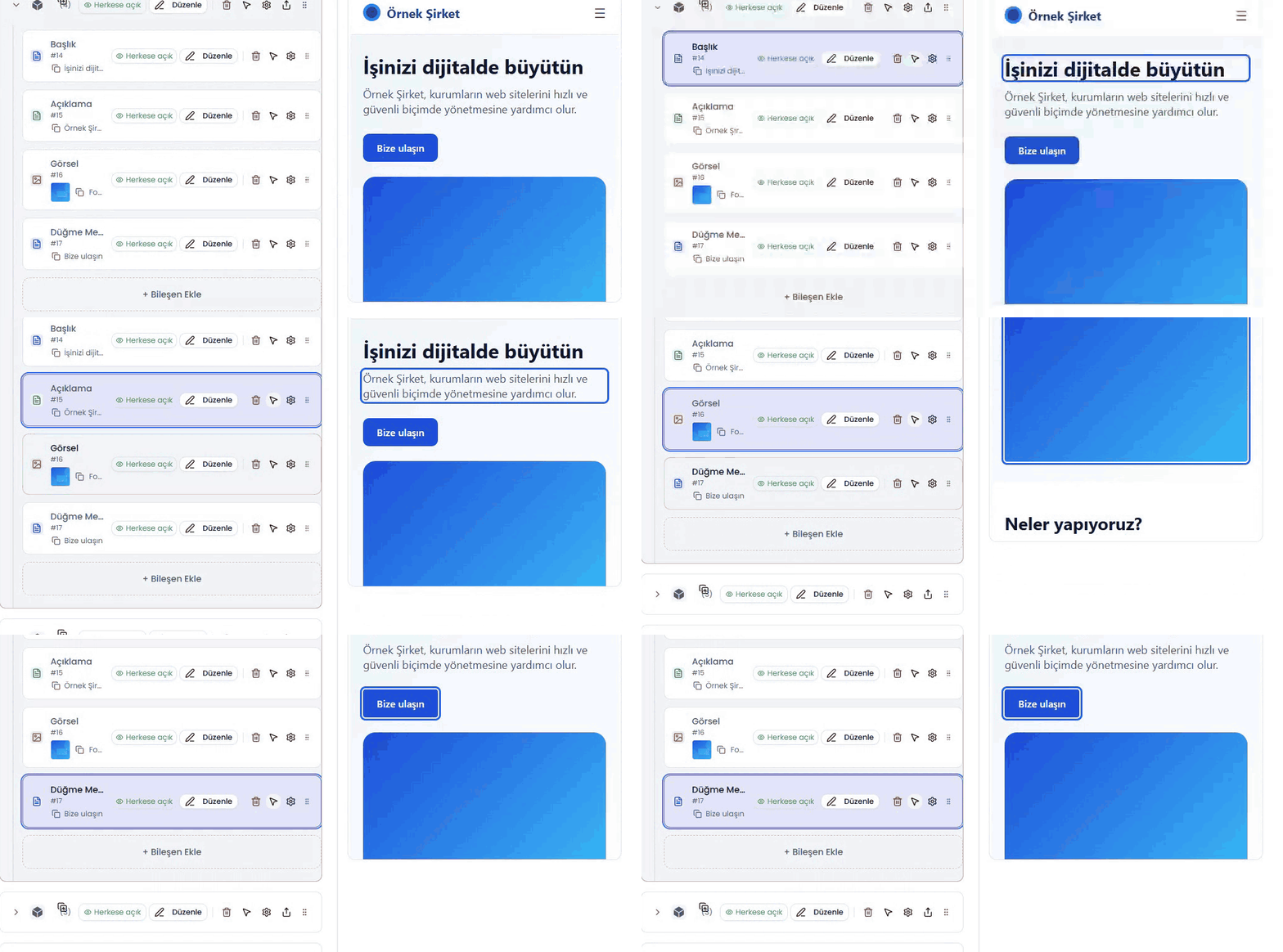 Clicking Select on page in the tree highlights the Title, Description, Image, and Button Text fields in the preview one after another
The visibility options in the panel are Public, Preview only, Live only, and Hidden.
How it works
Page content is edited as a tree of nested components. The editor shows the tree on the left and the site preview in the preview window on the right. Select a component to open a three-column, full-screen grid modal, where you can navigate into containers and edit leaf fields; changes are saved automatically. In the preview site, use the Inspector to select an item and edit it or find it in the tree. The workflow bar shows Save → Review changes → Approve → Live page.
Edit the component tree
Open the Component Editor
Click Content on the page's row in the page list, or the Components link in page settings.
Add components
Choose a component from the catalog with Add component. To add a child inside a container, select the container first, then click Add component again.
Reorder components and edit fields
Drag and drop to reorder components; use Repeat to duplicate the same structure. Select a component to open the grid modal, navigate through containers, and edit leaf fields. Changes in the grid modal are saved automatically.
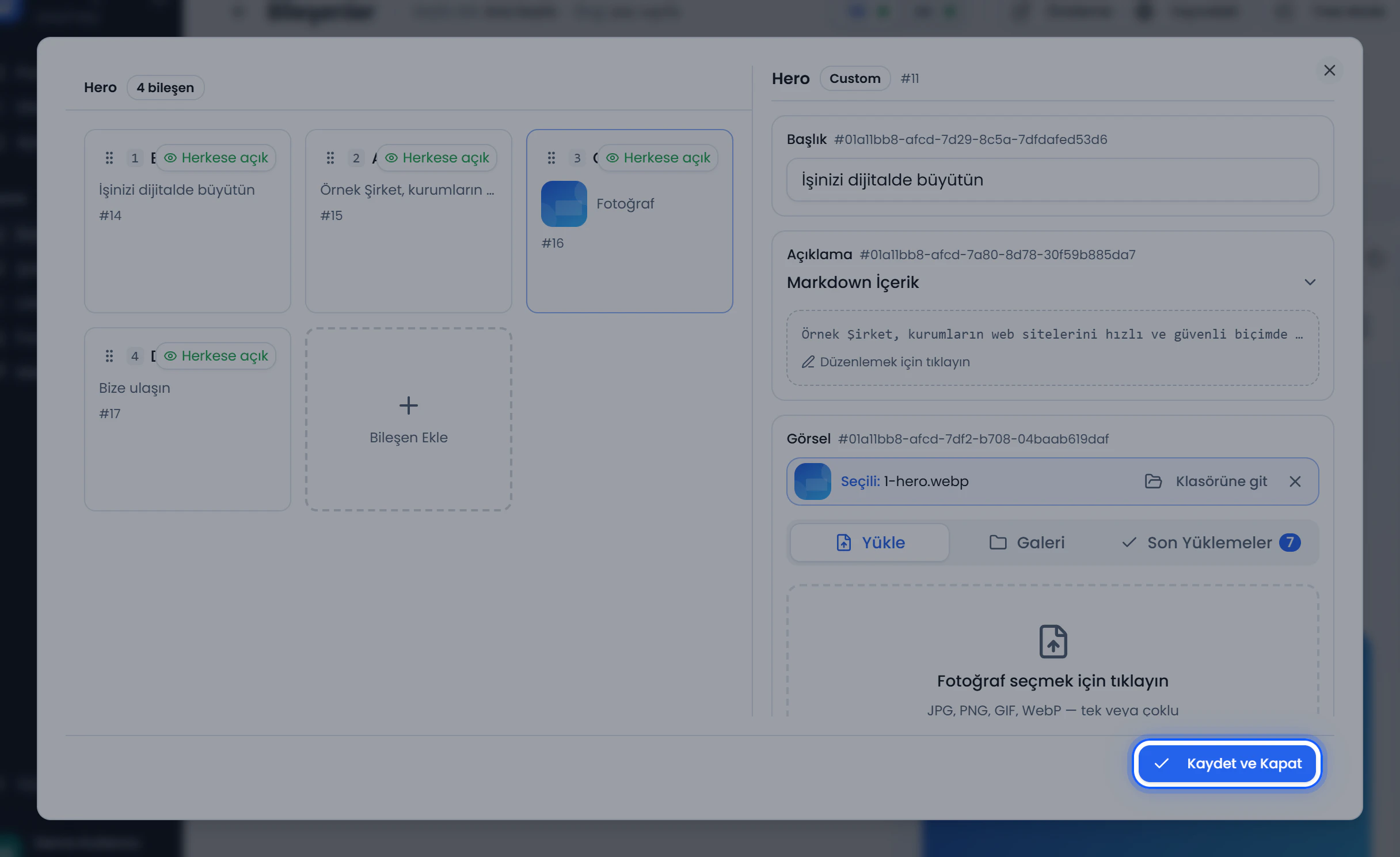 Grid modal — full-screen component editor
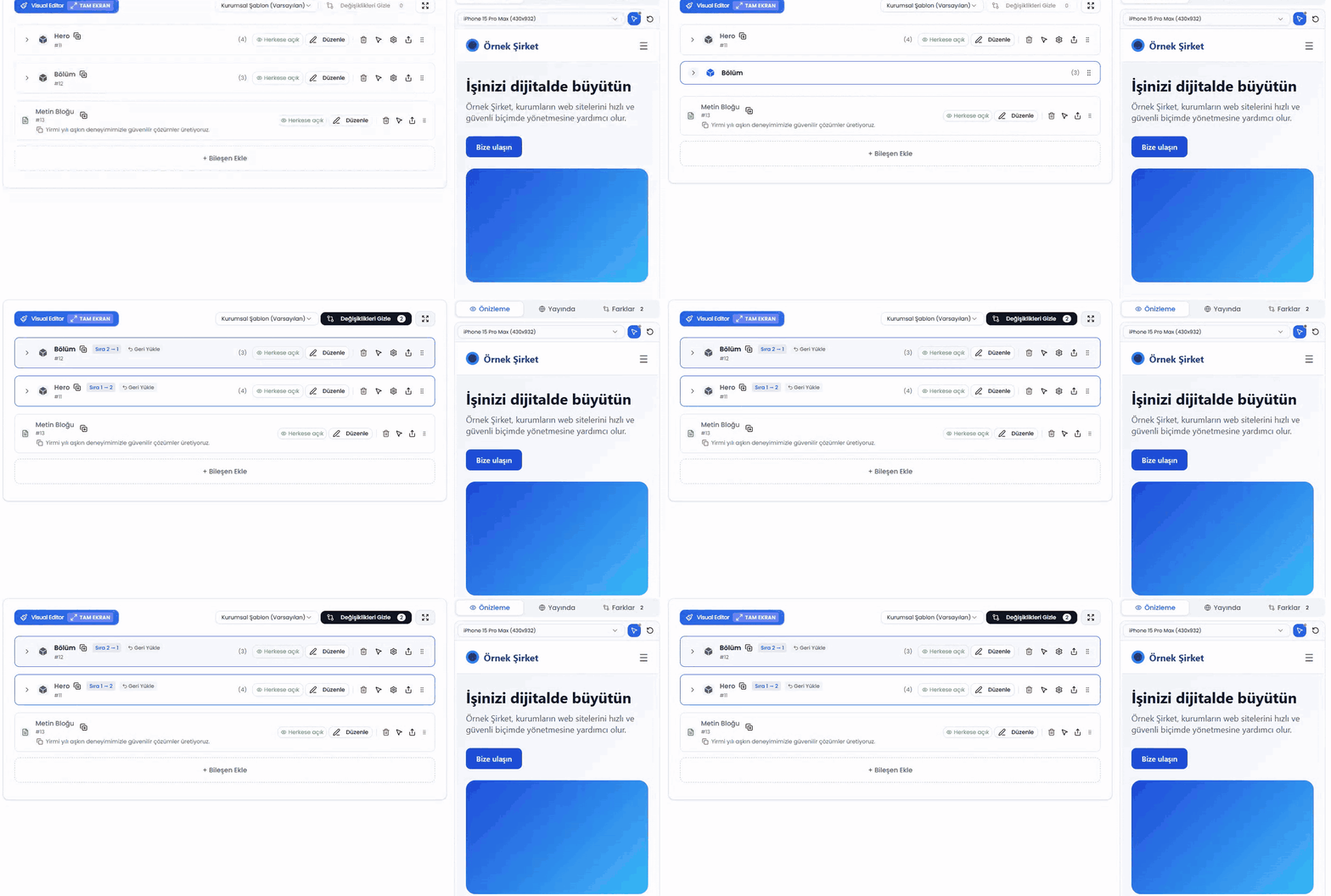 The Section component is dragged above Hero; the tree shows the new order
Check the preview and save
In the preview, use Inspector to select an item and go to Edit. Check the desktop, tablet, and mobile views, then click Save. The component tree is saved; the workflow bar shows the approval steps.
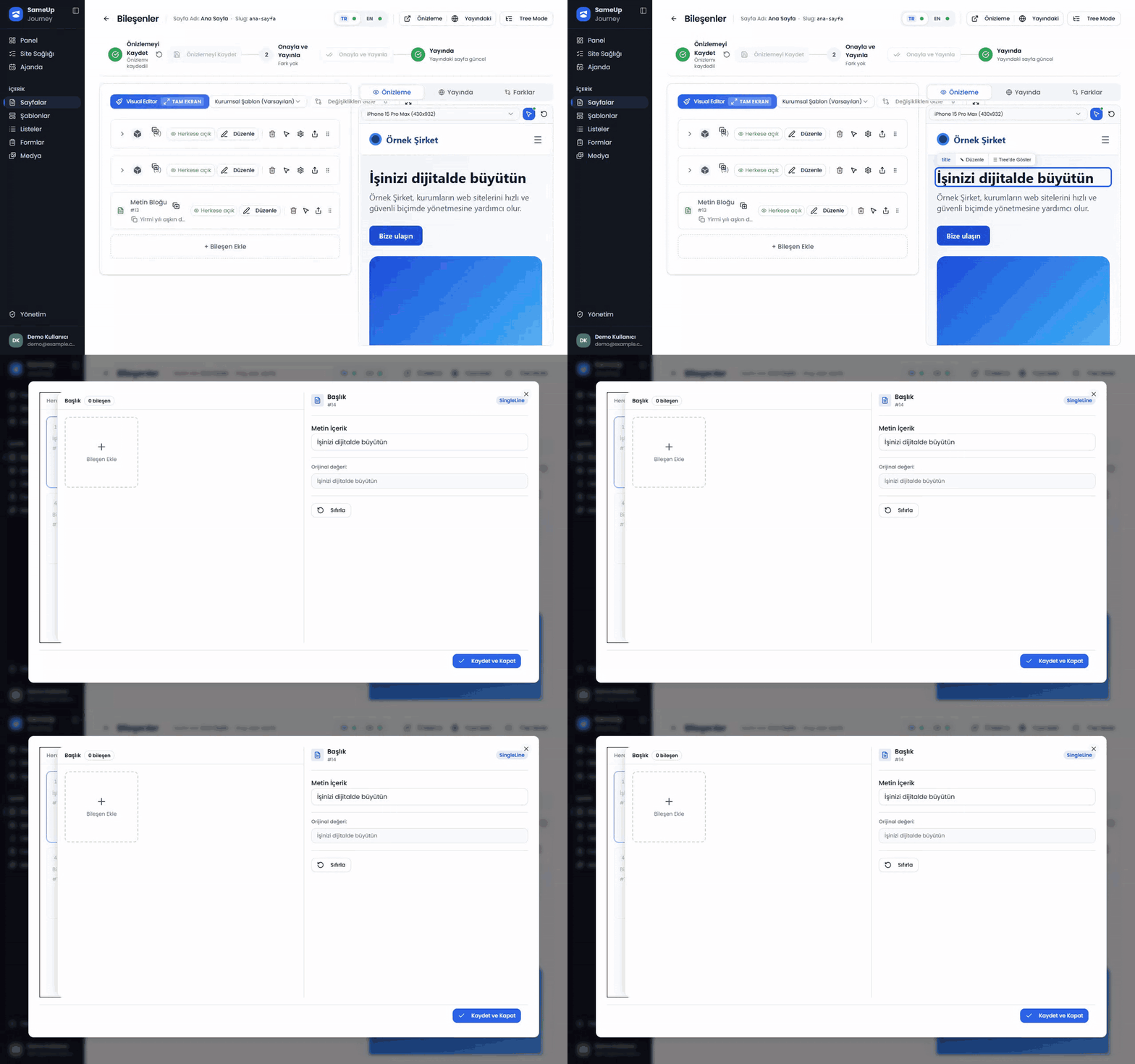 Clicking the heading in the preview opens the toolbar; Edit opens the editor for the Title field
Some sites can't be displayed in the preview window. In that case, switch to tree mode with the Tree Mode button at the top of the editor. Tree mode is a two-column editor without the preview.
Required permissions
The PDF lists Component as a permission category and says permissions are assigned to roles. It does not specify the permissions or permission codes required for this feature. Ask the team to confirm which permissions are needed.
Can't find a component in the catalog?
Ask your administrator if you need a component that isn't in the catalog. The administrator maintains the component catalog.
List and form components
- See Create a list for setting up and using a List component.
- See Build a form for setting up a Form component and adding it to a page.
Related guides
Finished this step?
Mark it to save your progress on the editor path.
Related pages
3 · Create a list
Add structured fields to pages and manage repeating content, such as a news section, with a list.
4 · Build a form
Create a form, set up its fields and submission flow, and track submissions in the inbox.
Component tree
Learn about the nested component tree behind every page, container and leaf types, and visibility options.