2 · Create a template
Create a language-specific template, send it for approval, and make it the language's default.
A template groups components you want to use across pages in a component tree. Each template belongs to one language; a page can use only approved templates in its own language.
Status
Click the numbers or use the ← → keys.
Create a template
Open Templates
In the admin panel, open Templates and click New Template.
Enter the general details
Fill in Template Name, Slug, and Language. All three fields are required, and there is no default language. The same slug can be used once per language.
Add components
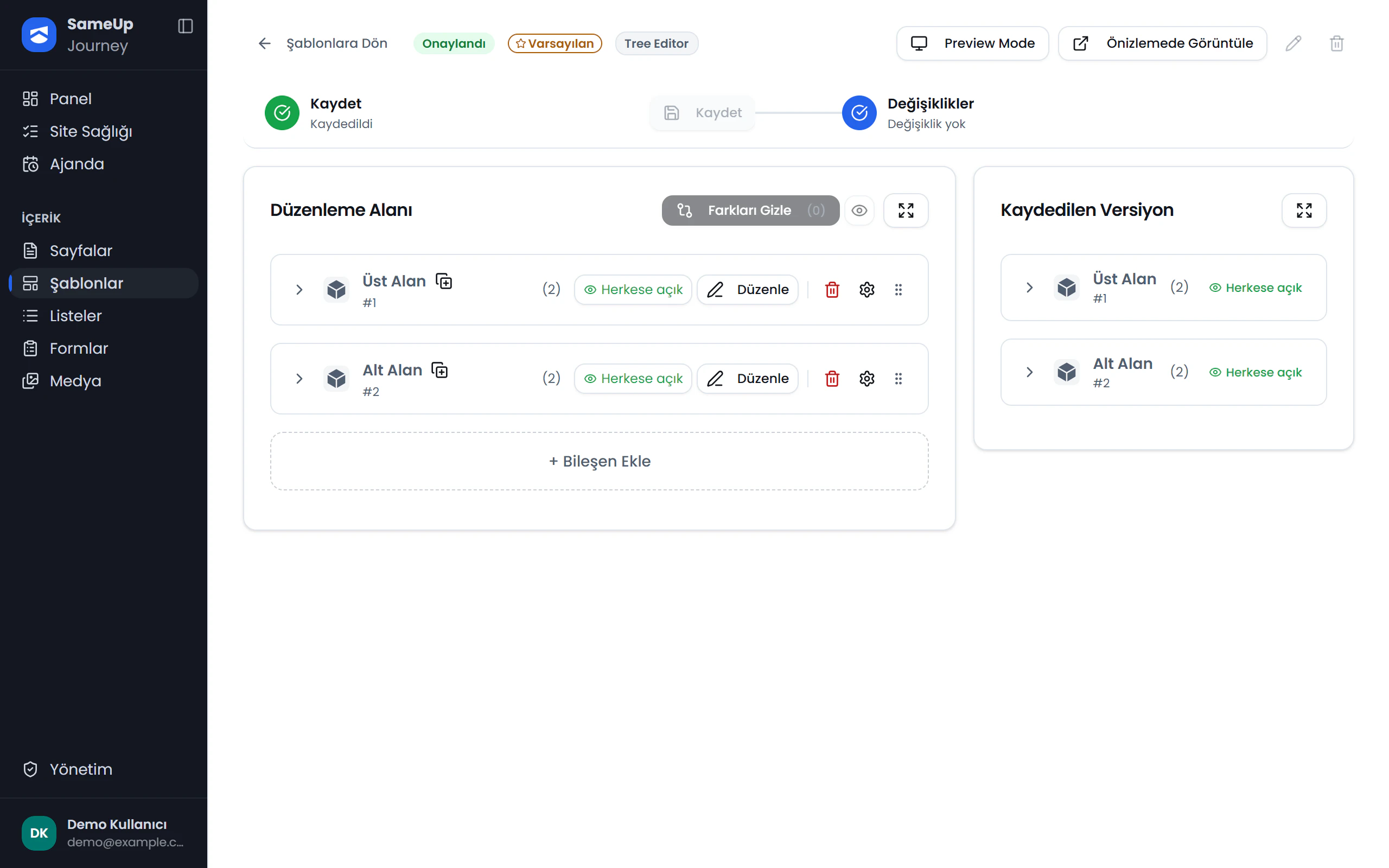
Add components to the Template Components tree with + Add Component. The tree works the same way as the component editor for pages; see Add components for details.
Save
Click Save. The template is created with Draft status.
Send for approval
Click Send for approval. This button appears only for templates in Draft status; the same action is also on the template's card in the list. The template's status becomes Awaiting approval.
Make it the default
On the approved template's card, click Make Default and confirm. If you don't choose a template when creating a page, that language's default template is used.
Approval workflow
| Status | Meaning |
|---|---|
| Draft | The template is saved but not yet sent for approval. |
| Awaiting approval | Waiting for review by a user with approval permission. |
| Awaiting changes | The template was rejected, or a new change was saved to an approved template. |
| Approved | The template is approved; it can be selected on pages and made the default. |
A user with approval permission sees two buttons on a template in Awaiting approval status:
- Approve: Opens a confirmation dialog that shows the changes. Send to publishing approves the template.
- Reject: Rejects the template and returns it for changes.
Default template
- Each language has one default template. When you make a new template the default, the previous default in the same language loses that setting.
- Make Default appears only on templates that have an approved version and are not already the default.
- The template list is grouped by language. A language without a default template shows a No default badge in its heading.
- The default template cannot be deleted. Make another template the default first.
Change a template's language
Use Change Language on the template's card to move it to another language. You cannot change the language while any page uses the template; change those pages' template first.
Choose a template when creating a page
The Template field in the page form lists only approved templates in the page's language. The default template is marked with a Default hint. The page and the template must have the same language, and a page whose template isn't approved can't be approved either.
Template changes apply to existing pages
A page stays linked to its selected template; the template isn't copied into the page. An approved change to a template appears on every page that uses it. Consider which pages will be affected before you edit a template.
Common situations
Check that the template has Approved status and the same language as the page.
The template needs an approved version. The button isn't shown if the template is already the default.
Finished this step?
Mark it to save your progress on the editor path.