Pages
List, configure, and manage website pages through the publishing workflow in the Journey AI admin panel.
Pages lets you manage the list, settings, components, and SEO information for website pages in Journey.
Language switcher
Click the numbers or use the ← → keys.
What can you do?
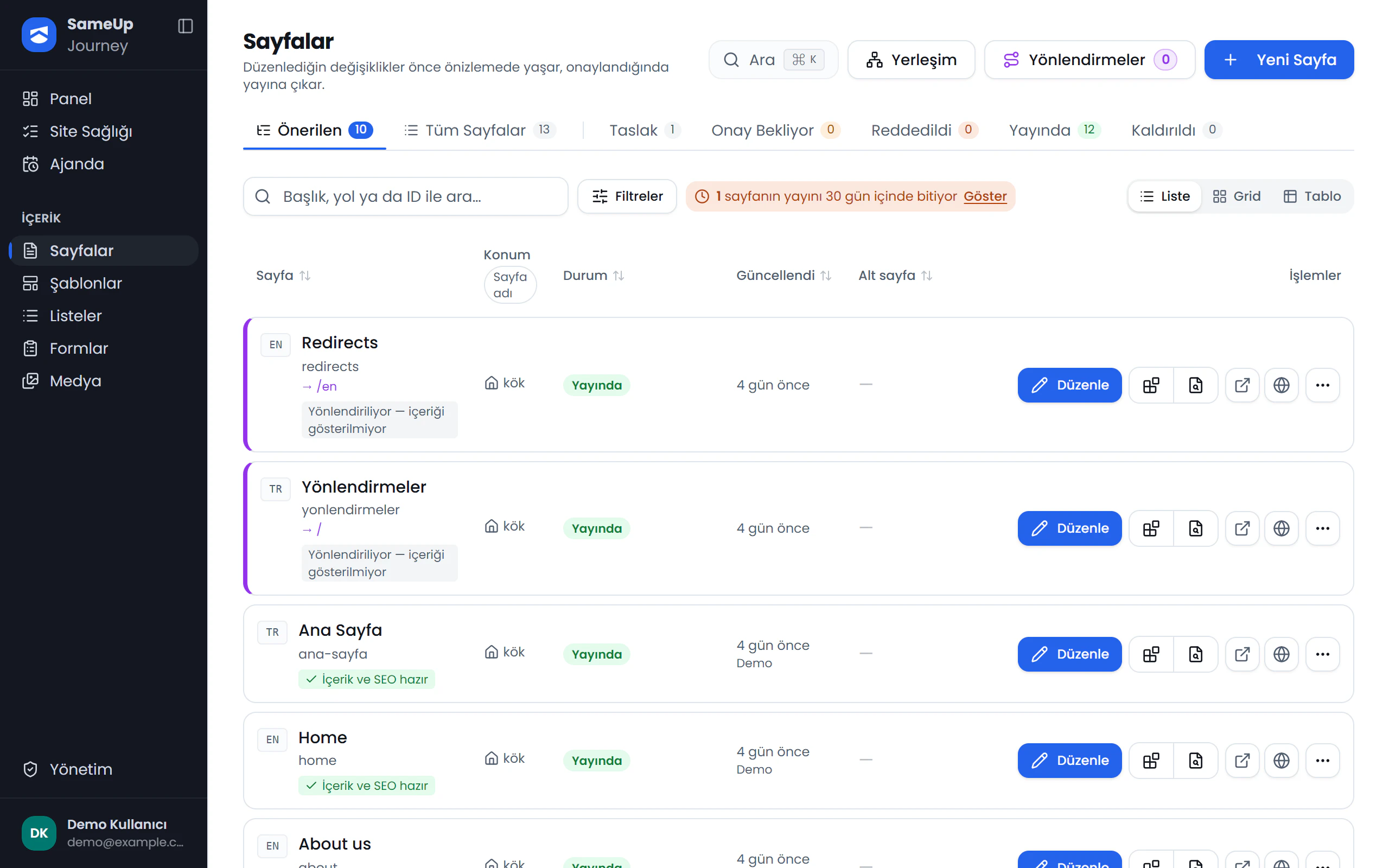
- Browse pages as a tree in Recommended or as a flat list in All Pages. Choose List, Grid, or Table view; lists use server-side pagination and sorting.
- View pages in the Draft, Awaiting approval, Rejected, Published, and Removed tabs. Each tab shows a count badge.
- Search by title, path, breadcrumb title, or ID; the search is insensitive to Turkish characters. Filter by language, page health (Missing / Warning), redirect or child-page status, publishing time (Ending / Scheduled), and site-wide missing items.
- Check content and SEO status from the health chips below page titles. From a row, choose Edit, Content, or SEO; use Open in preview or Open on live site; or choose Copy or Delete. The row also offers the next action for that page's status, such as Send for approval, Approve, Reject, Go to revisions, or Send for publishing.
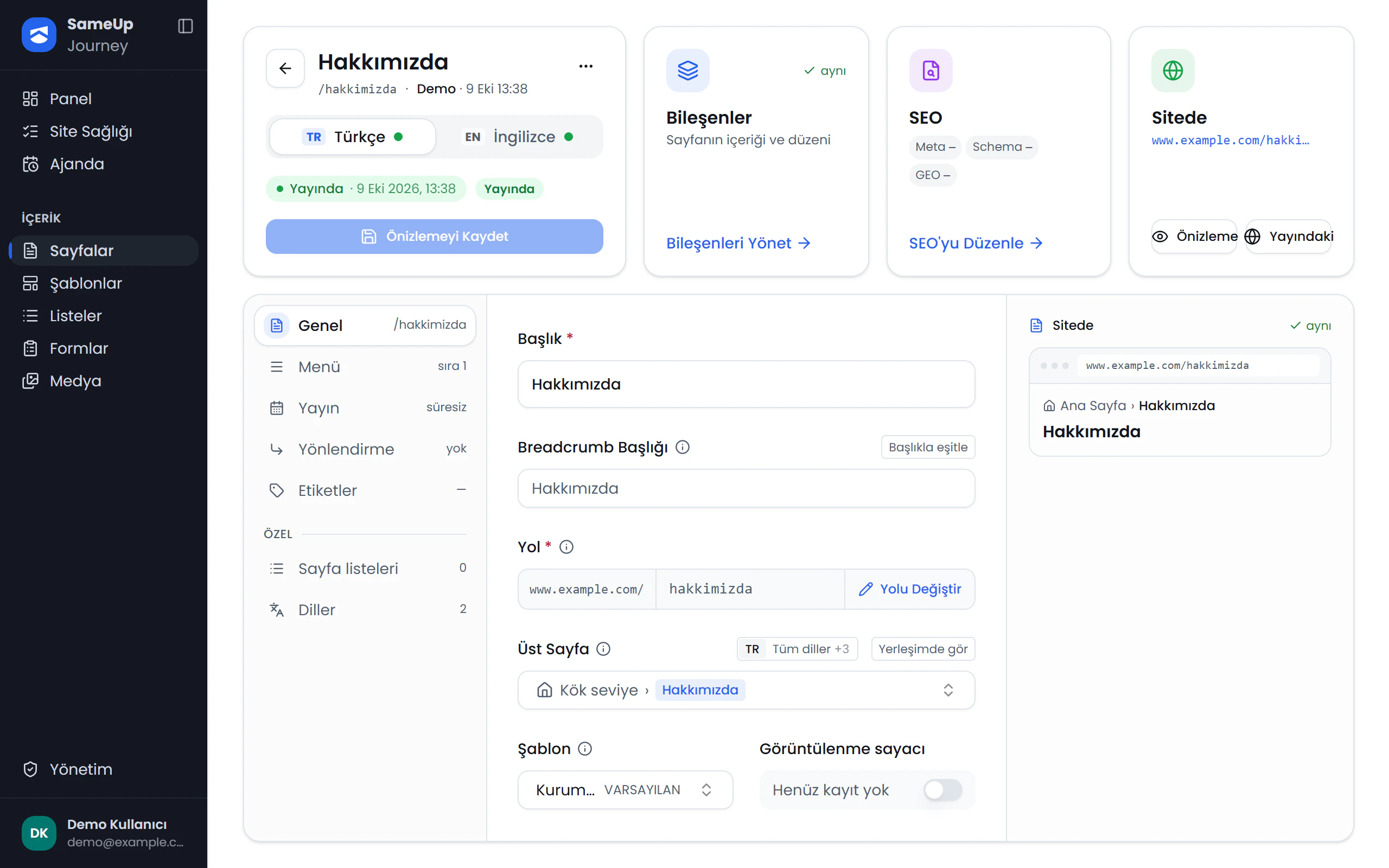
- Manage General (Title, Breadcrumb title, Path, Parent page, and Template), Menu (Order and menu details), Publishing (start and optional end dates), Redirect, Tags (page type, category, and tags), Page lists, and Languages in page settings.
- In Page layout, move pages between parent pages and reorder them by language; see Page layout. In Page ordering, undo or redo changes and review a summary before saving.
Layout and New page
Click the numbers or use the ← → keys.
How it works
Choose a page from the Pages screen to open its settings, content, or SEO information. The right-hand side of page settings shows the page status, Save or Send for approval, field-by-field differences between the draft and published versions, and quick links. Saved changes are reviewed and pass through the approval workflow before they become the live page. The Language selector uses colors to distinguish each language's publishing status. The page list and placement screens help you find and organize pages by status and language-specific hierarchy.
Required permissions
Permissions are assigned to roles, and a user has the combined permissions of their active roles. The permissions for page work are in the Page management group: Add, Update, List, View, Send for approval, Approve, Reorder, Delete, and Assign schema type. The user needs the relevant permission from one of their active roles for the task they perform. See Users and roles for details.