Page layout
Move pages between parent pages per language and reorder sibling pages.
In this guide you'll learn how to change which parent page a page sits under, and the order of pages on the same level, on the Page layout screen.
A page's parent and order make up the site's page hierarchy. Each language has its own hierarchy.
Page layout and the site's header menu
In the standard site template, the header menu and footer links come from the template's menu component, not from the page hierarchy. On such a site, changing the layout doesn't change the header menu; edit the menu links on the Template screen. If you're not sure where your site's menu comes from, ask your development team.
Open the screen
Click the Layout button in the header of the Pages screen. In a page's settings, the View in layout link next to the Parent page or Order field opens the screen in that page's language.
Viewing the screen requires the List permission in the Page management group. Moving pages requires Update; changing the order also requires Reorder. See Users and roles.
Language
Click the numbers or use the ← → keys.
Get to know the screen
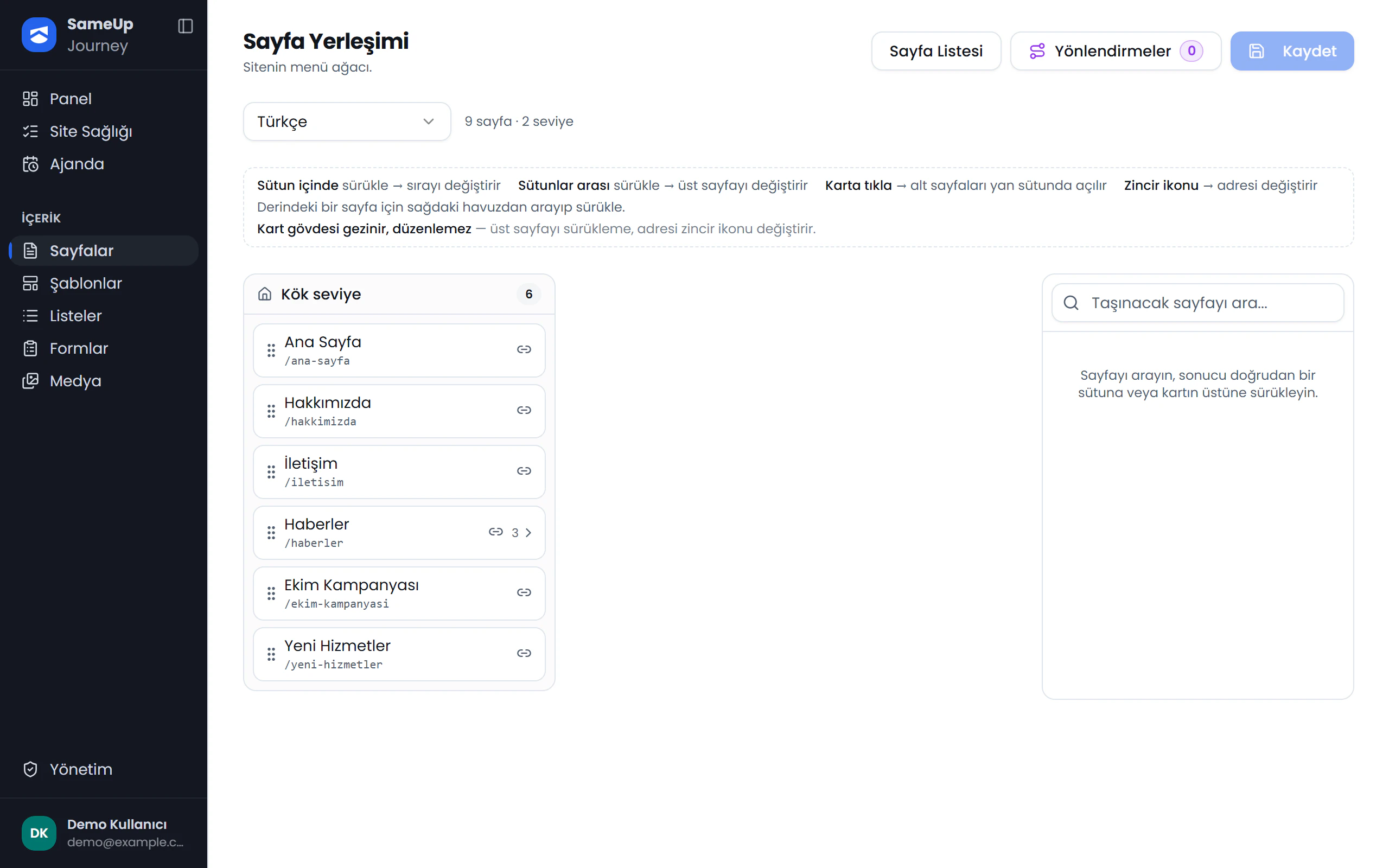
- The Language selector sets which language's tree you see. The default language opens first.
- The tree is made of side-by-side columns, like a file browser. The first column is Root level. Clicking a card's body opens that page's subpages in the next column.
- Each card shows the page's title, path and number of subpages. Use the handle on the left to move a card.
- The search box on the right helps you find a page deep in the tree. You can drag a result straight onto a column or a card.
- Pages that aren't published also appear in the tree; no status badge is shown.
Move a page
Choose the language
Pick the language you want to edit in the Language selector.
Drag the page
- Dragging within the same column changes the page's order.
- Dropping it on a card in another column makes the page a subpage of that card. The target card gets a blue frame before you let go.
- Dropping it on an empty area of a column adds the page to the end of that column. To move a page to the top level, drop it in the Root level column.
A page can't be moved under itself or under one of its own subpages. There is no depth limit.
Check the summary
Changed cards are highlighted in blue. The To be saved card lists which pages move under which parent and how many pages changed order. To back out, click Undo; the whole draft is discarded.
Save
Click Save (N) (Save (N)). Nothing reaches the site until you save. After saving, a notification shows how many pages were moved and how many orders were updated.
What happens when you save
- No approval. Parent and order changes are written to both the live page and its preview copy at once. The page doesn't enter the approval queue; pending content changes stay pending.
- Subpages move along. The pages under the page you move go with it to its new place.
- Addresses don't change. Moving only changes the page's place in the hierarchy; its path stays the same and no redirect is created. To change the address, see Change the address below.
- The site cache is refreshed. After saving, the preview and live site caches are refreshed.
Nobody approves layout changes
A saved layout goes live immediately. Before a large move in a busy tree, check the To be saved summary carefully.
Change the address
When you move a page under another parent, its path stays where it was. For example, if you move /about/team under Corporate, its address stays /about/team.
- Click the chain icon on the card to open the Change path window. Leave Redirect from the old path checked to redirect the old address to the new one. Subpage addresses change too. This can't be undone.
- A warning icon appears on cards whose path isn't under their parent's path. The Attention card lists these pages:
- Fix path: the page stays in place; its address moves under the parent, and the old address redirects to the new one.
- Move under … / Move to root: the address stays; the page moves under the parent that matches its address. This is also a draft until you click Save.
- If a middle page is missing from a path, you can create it with Create.
Change it in page settings
You can also change a single page's place in its settings:
- The Parent page field in the General section: the empty option is Root level. This change doesn't wait for approval either; it's applied to the live layout as soon as you save. If the page has subpages, they move along.
- The Order field in the Menu section: pages on the same level are sorted by this number, smallest first.
The order field goes through approval
Unlike the Page layout screen, the Order field in page settings is written to the preview copy and goes live once approved. To change the order right away, use the Page layout screen.
The same screen has two more menu and hierarchy fields:
- Breadcrumb title (in General): the name shown in the breadcrumb trail. If empty, the page title is used.
- Menu description (in Menu): a short description shown under the title in the menu.
Whether these fields appear on the site depends on the site template using them.
Common situations
Your site's header menu most likely comes from the template's menu component. Edit the menu links on the Template screen.
Moving doesn't change the address. Open the Change path window with the card's chain icon, or use Fix path in the Attention card.
Page layout shows each language separately and doesn't allow moving between languages. The Parent page field in page settings does list pages in other languages, but the panel then warns that the menu may look broken in that language.
Moving pages requires the Update permission in the Page management group. Ask your administrator to add it to your role.