Component tree
Learn about the nested component tree behind every page, container and leaf types, and visibility options.
This page explains how Journey AI stores content as a tree, which component types exist, and how visibility works.
Tree structure
A page's content is a component tree. Container types can hold child components; leaf types hold data and cannot have children. The tree can be nested to any depth. Think of it as a structural representation of HTML.
hero-banner            (Custom)
├── title              (Short text)  "Banking for the future"
├── description        (Rich text)   "**Fast**, secure, everywhere."
├── image              (Photo)       "https://cdn.example.com/Photos/12-hero.webp"
└── buttons            (Custom)
    └── button         (Custom, repeatable)
        ├── label      (Short text)  "Apply now"
        └── link       (Short text)  "/apply"
Each field in the component tree maps to page content such as text, images, or links.
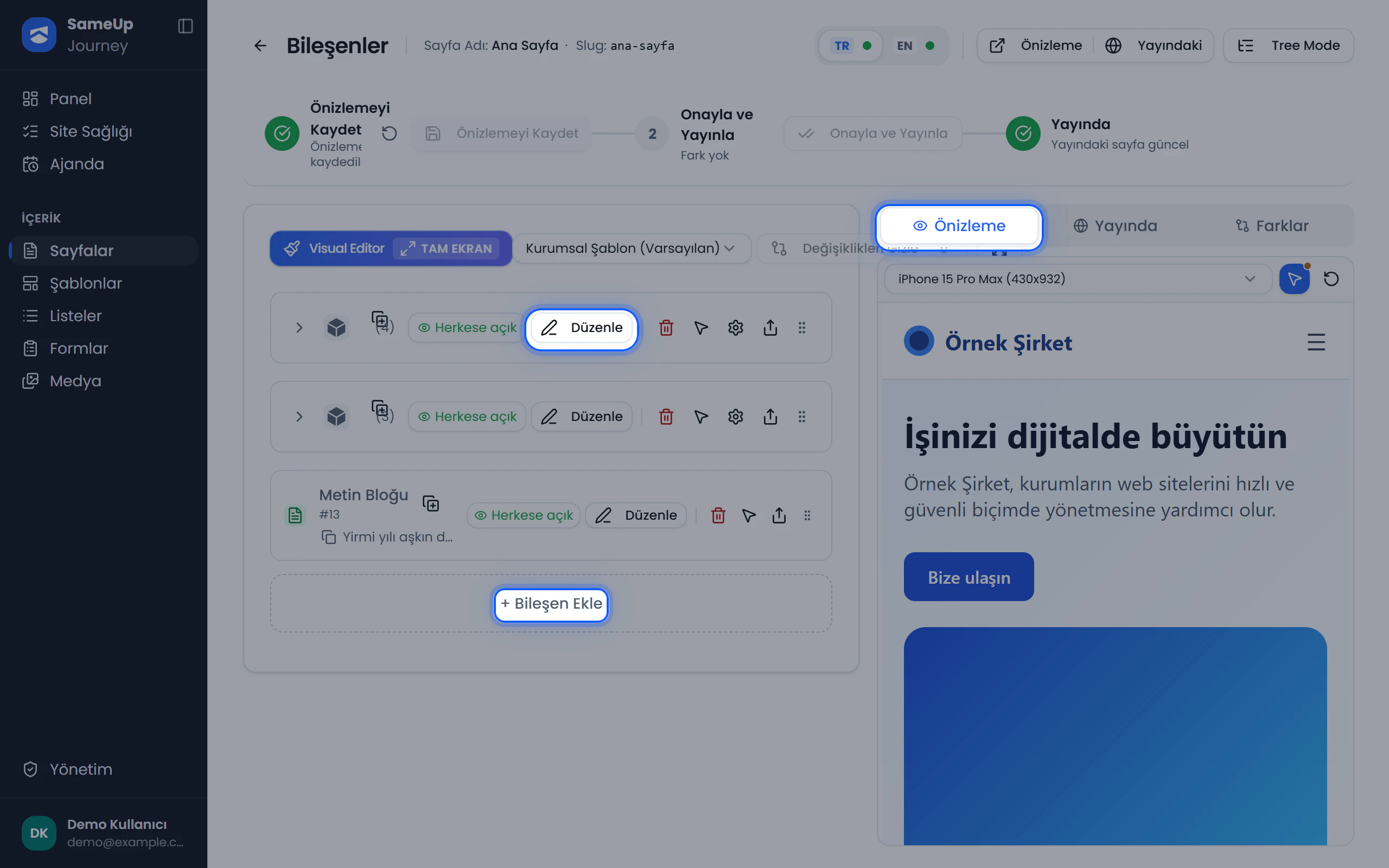 Component editor — nested component tree with the preview on the right
Container and leaf types
| Group | Types | What it holds |
|---|---|---|
| Container | Custom, Form | Child components. No data of its own. |
| Leaf | Short text, Rich text (Markdown), Photo, Video, Document, Dropdown, Yes/No (Boolean), List, Form field | Data: text, a URL, a selection, and so on. Cannot have children. |
The rule is simple: containers hold children, leaves hold data. A container that has children cannot be converted to a leaf type. The tree is validated on save, and leaves that must carry data cannot be left empty.
Visibility
Visibility is set separately for each placement:
| In the admin panel | Meaning |
|---|---|
| Public | Shown on both the preview and live sites. |
| Preview only | Shown on the preview site only. |
| Live only | Shown on the live site only. |
| Hidden | Shown on neither site. |
If every component on a page is hidden, page health flags it as Missing.
Working with the tree
In the component editor you can add components, nest them, reorder them with drag and drop, duplicate, delete, change visibility, and move a component to another page. See the Add components guide for details.