Component catalog
Manage component definitions used on site pages and templates.
The component catalog holds definitions for building blocks that can be used on site pages and templates. It is generally managed by the technical team.
For editors
For instructions on using existing components in page content, see Add components.
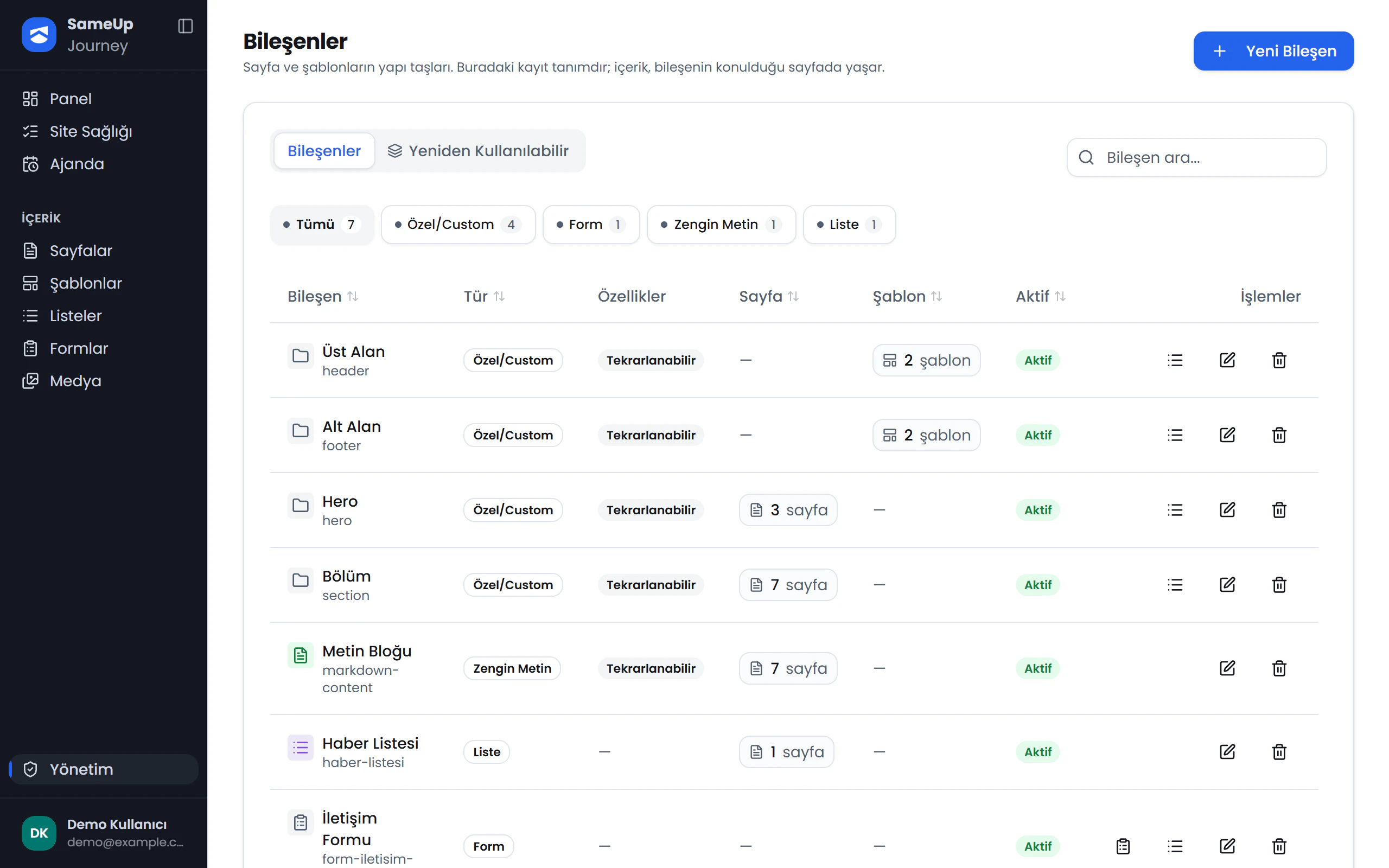
New component
Click the numbers or use the ← → keys.
Fields in a component definition
A component definition in the catalog includes these fields:
| Field | Description |
|---|---|
| Title | The component name shown in the panel. |
| Slug | The key for the component definition. The site developer maps this slug to a component in the site code. |
| Component type | Determines the component's type. Containers can hold child components; leaves hold data and cannot have children. |
| Repeatable | Controls whether the component can be used more than once in the same place. When enabled, the component tree shows Copy. When disabled, the component isn't listed in the add dialog if it already exists under the same parent, and it can't be copied. This setting affects editing in the admin panel only; it doesn't change how the site looks. |
| Reusable | Lets the component be added under other components as well. Reusable components can be added only under Custom or Form containers and form fields. They are listed in a separate source tab in the add-component dialog. Turning the setting on also makes the components nested under it reusable. |
| Active | Inactive components are removed from page and template content and aren't listed in component pickers. Search returns only active components. |
| Child component tree | Defines components nested under a container. |
| Dropdown options | Defines options for a dropdown component. |
Understand component types
Container types hold child components. The PDF identifies Custom and Form as container types. Leaf types hold data and cannot have children. Examples include Short text, Rich text, Photo, Video, Document, Dropdown, Yes/No, List, and Form field.
Check component usage
Catalog components can be filtered by type, and usage counts are shown per page and template. A component's Usage page lists the pages and templates where it appears, along with status, visibility, and language.
Don't delete a component that's in use
A component that's in use cannot be deleted. A container component with children also cannot be changed to a leaf type.
Special slugs
Components with slugs starting with popup work as overlays triggered by a delay, scroll percentage, or exit intent. Slugs starting with sticky-button indicate sticky-button behavior.
Work with the site developer
After you create a component definition in the panel, the site developer creates a React component for the same slug and adds it to the component registry. See the developer guide Components for the code-side steps.
An unmatched component appears on the site as a debug card
If the site code has no component with the same slug, the component appears on the live site as well as a blue debug card showing its title, slug, and data. Before publishing the component on a page, make sure the developer has added it to the site code.